If you already have a PowerPoint (PPTX) or PDF of your presentation, you may be only 3–4 minutes of human effort and around 30 minutes of generation time away from creating a polished video.
Your first video is absolutely FREE, and you do not need to enter credit card details. So even if you do not have a subscription yet, you can still try CourseCut AI and create your first video.
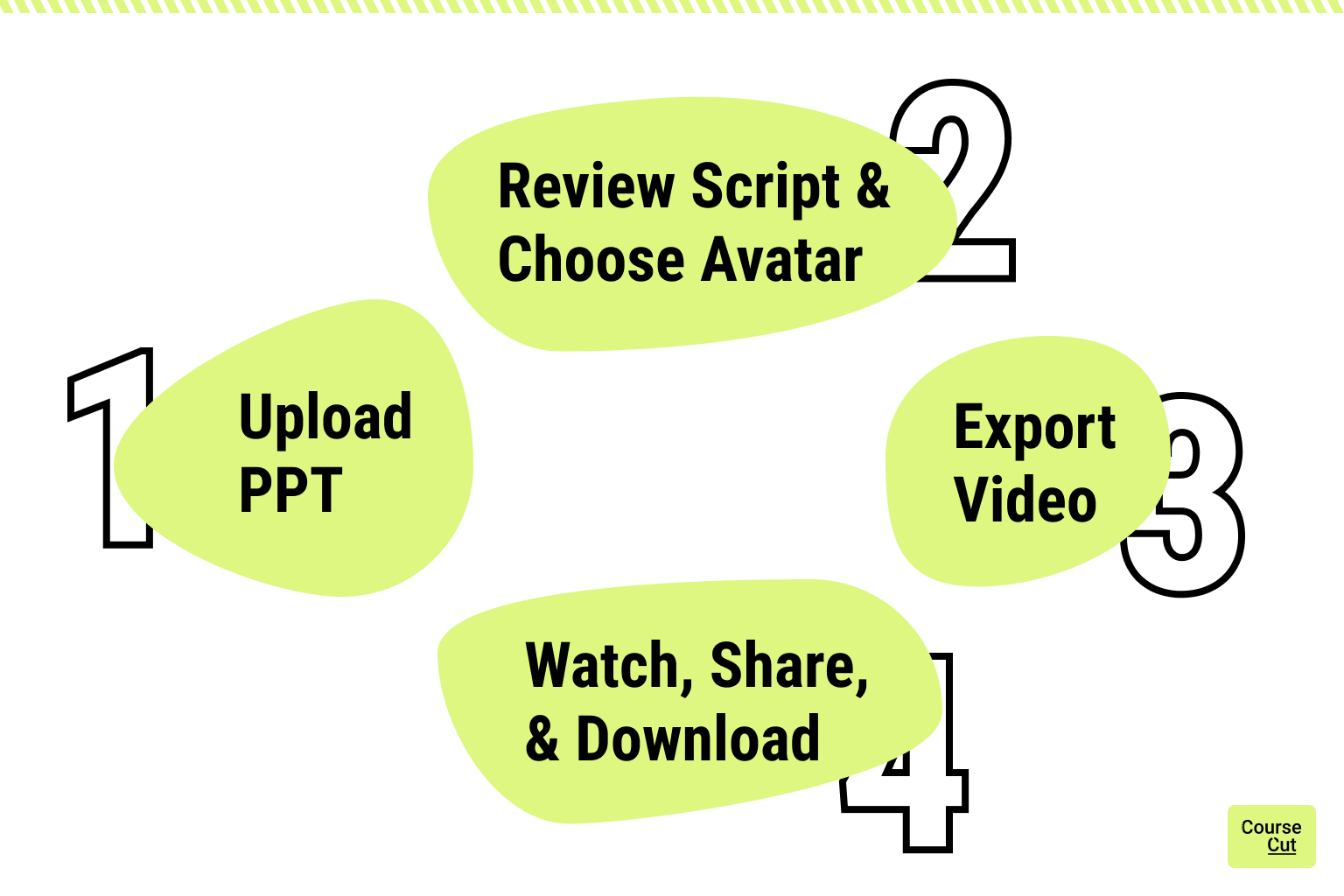
With CourseCut AI, your part is simple: upload your presentation, review the script, choose your avatar, and click Export Video. CourseCut then helps turn your slides into a video with narration, avatar, captions, B-roll, music, sound effects, and editing control.
You do not need to write the narration from scratch, record yourself, manually edit a timeline, or rebuild your slides inside a video editor.
In this guide, we will walk through the basic steps to create your first video with CourseCut AI.
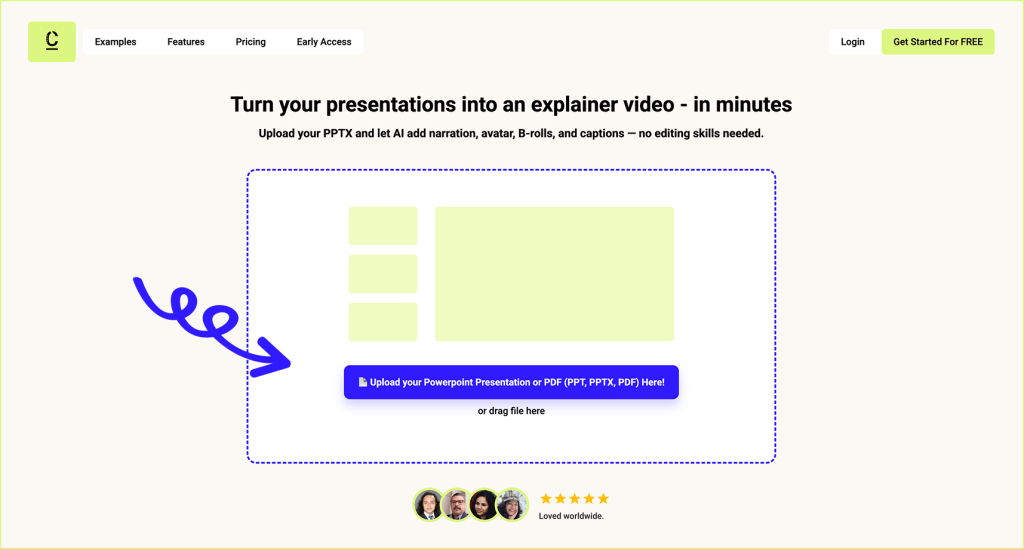
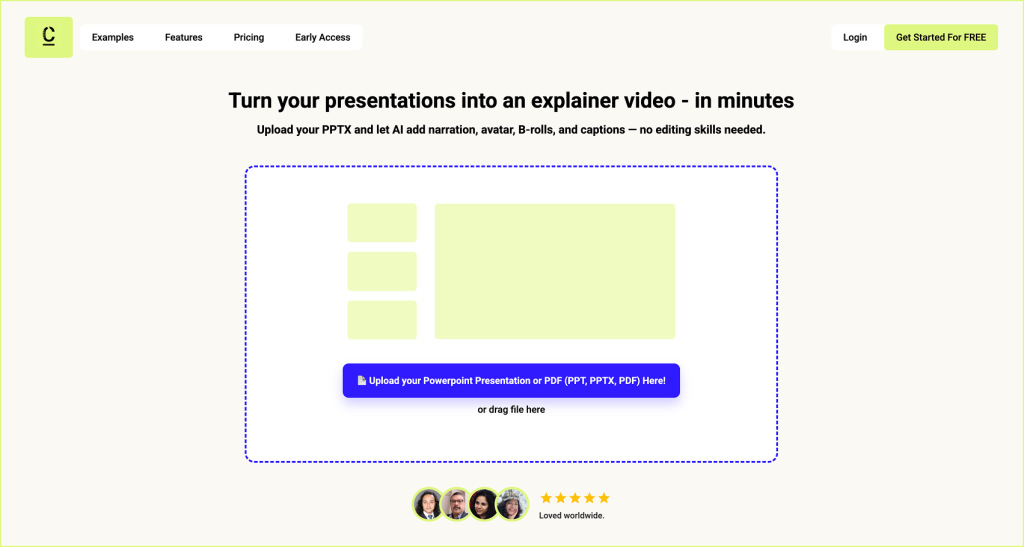
You can click the blue Upload button or drag your file into the dotted blue box.
CourseCut AI supports PowerPoint, PPTX, and PDF files. You can upload up to 50 slides and a maximum file size of 100 MB.
Upload Your Presentation
Wait for the file to upload. This can take a couple of minutes depending on your internet speed and the size of your file.
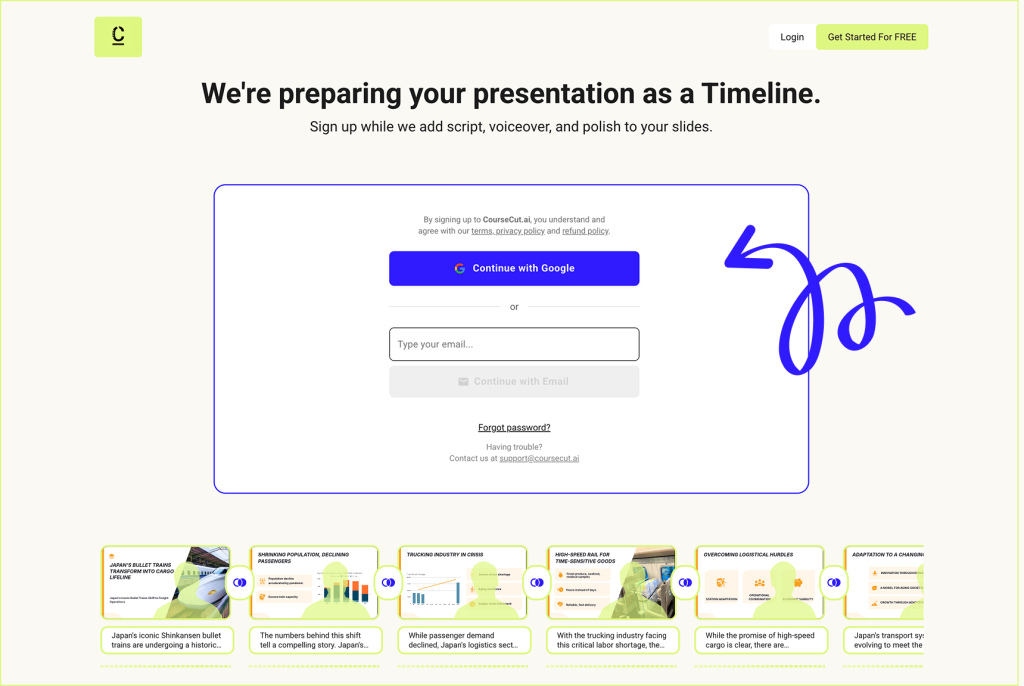
If you are not already logged in, CourseCut AI will ask you to log in or sign up. You can continue with Google or use your email address.
During sign up, you can choose the Free plan. The Free plan allows you to create up to 6 minutes of video per year, so you can create your first video without a paid subscription.
Login or Sign up
If you sign up with email for the first time, you will receive a verification email with a link to confirm your account. If you do not see the email, check your spam or promotions folder.
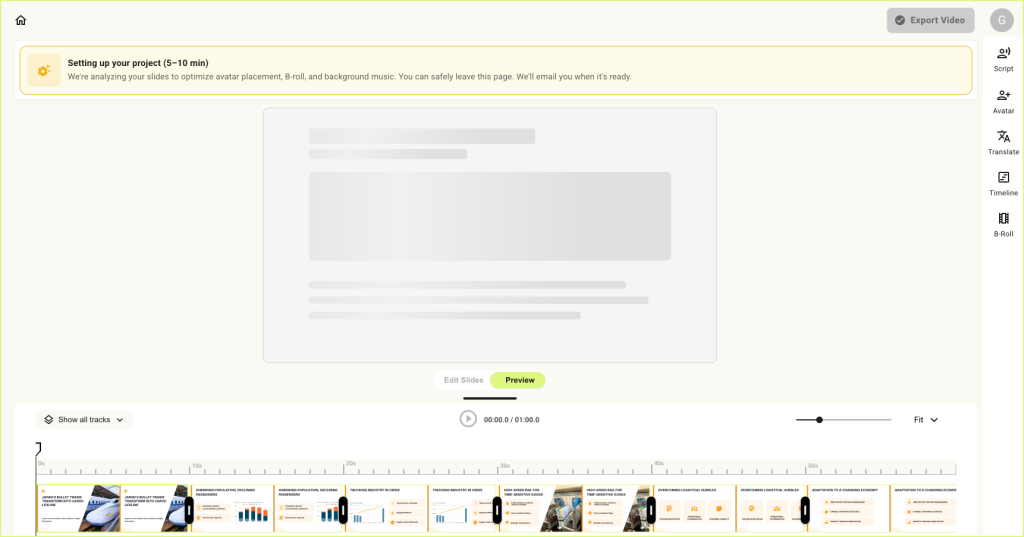
Once you are logged in, wait for CourseCut AI to set up your project timeline. This can take anywhere from a couple of minutes to 5–10 minutes, depending on your file.
Set-up Timeline
You do not need to stay on the page while this happens. You can continue with other work, grab a quick coffee, or go for a short walk. CourseCut AI will email you once your project timeline is ready.
During this time, CourseCut’s AI agents start doing the directorial work behind your video. They write the narration script, decide where the avatar should appear so it does not block important slide content, identify key moments where B-roll can help, create prompts for B-roll generation that match the visual style of your presentation, and prepare background music prompts for the video.
In short, CourseCut AI starts converting your presentation into a structured video experience, so that the ideas in your slides are explained clearly and absorbed better by the learner.
Step 2: Review the Script and Choose Your Avatar
Once your project timeline is ready, open it from the email notification or from your CourseCut AI dashboard.
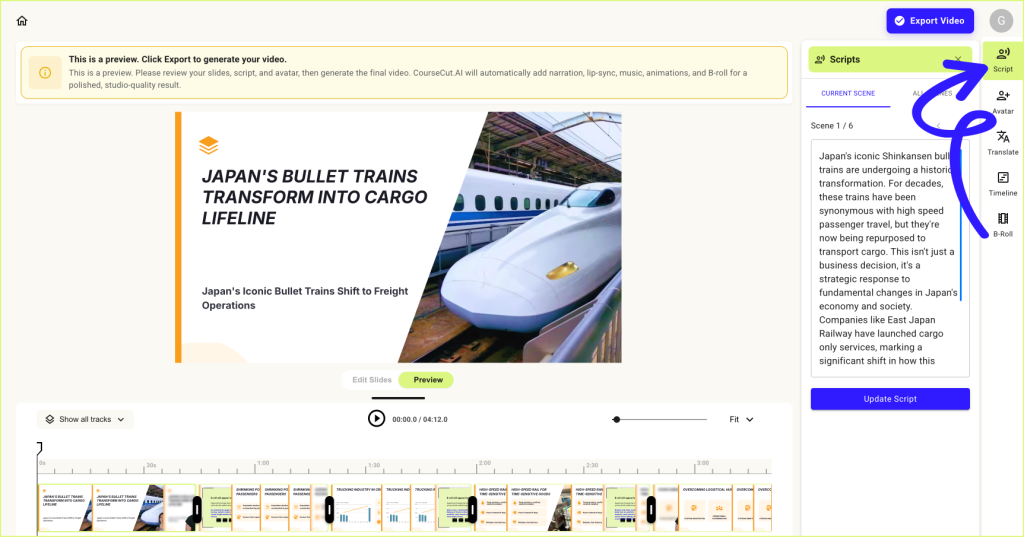
Start by reviewing the narration script by clicking on the Script icon. Check whether it explains your presentation clearly and says what you want to convey.
You can make changes to the script and update it if you want. For your first video, we recommend leaving the script as-is, because updating the script will reset the project timeline and may take another 5–10 minutes.
Review Script
If you uploaded a longer presentation, CourseCut AI may shorten the script so that your video stays within the 6-minute limit of the Free plan. This helps you generate your first video for free.
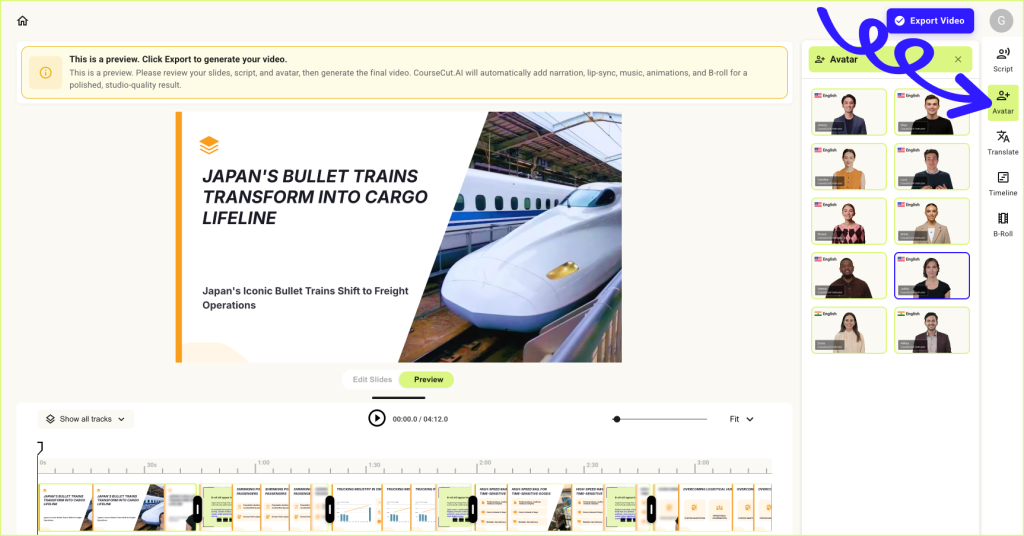
Next, click on the Avatar icon and choose the avatar you want to use for the video. You can keep the default avatar or choose any avatar you prefer. Hover over an avatar to hear how their voice sounds.
Choose Avatar
At this stage, you are still looking at a preview. The final voiceover, B-roll, music, sound effects, and other finishing touches will be added only when you export the video. In the preview, you will mainly see where the avatar and B-roll will appear.
So if the preview does not yet feel like a complete video, do not worry. You are almost there.
CourseCut AI also gives you advanced options such as creating a custom avatar, editing slide elements, updating the script in more detail, adjusting B-roll, and fine-tuning other parts of the video. For your first video, you can skip these options and come back to them later.
Once the script and avatar look good, you are ready to export your video.
Step 3: Click Export Video
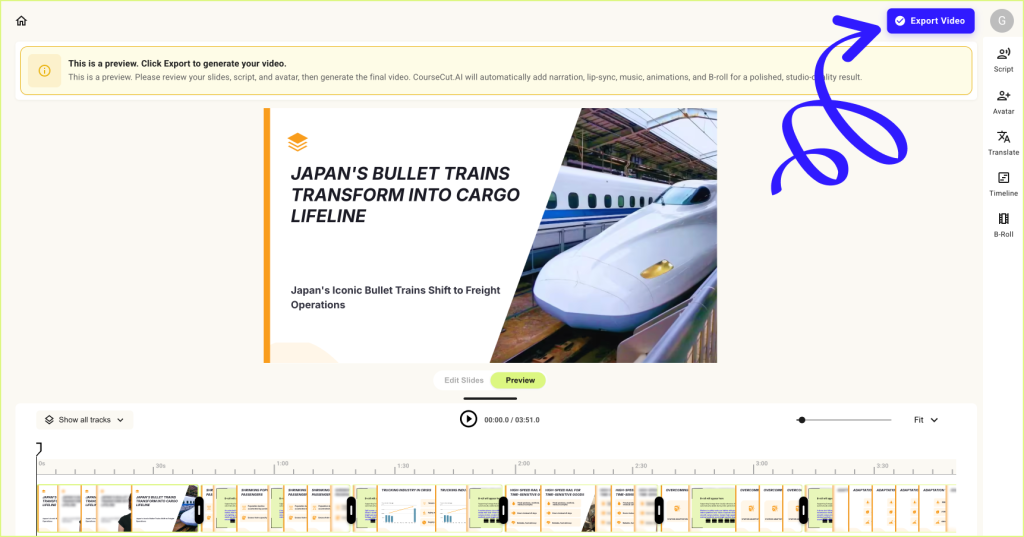
Once you have reviewed the script and selected your avatar, click Export Video in the top right.
Export Video
This is where CourseCut AI generates your final video. The platform adds the voiceover, lip-syncs the avatar, generates B-roll, adds background music, includes sound effects, and prepares the final polished output.
Video generation usually takes around 10–20 minutes, depending on the length and complexity of your presentation.
You do not need to stay on the page while the video is being generated. You can continue with your work, and CourseCut AI will email you once your video is ready.
Step 4: Watch, Share, and Download Your Video
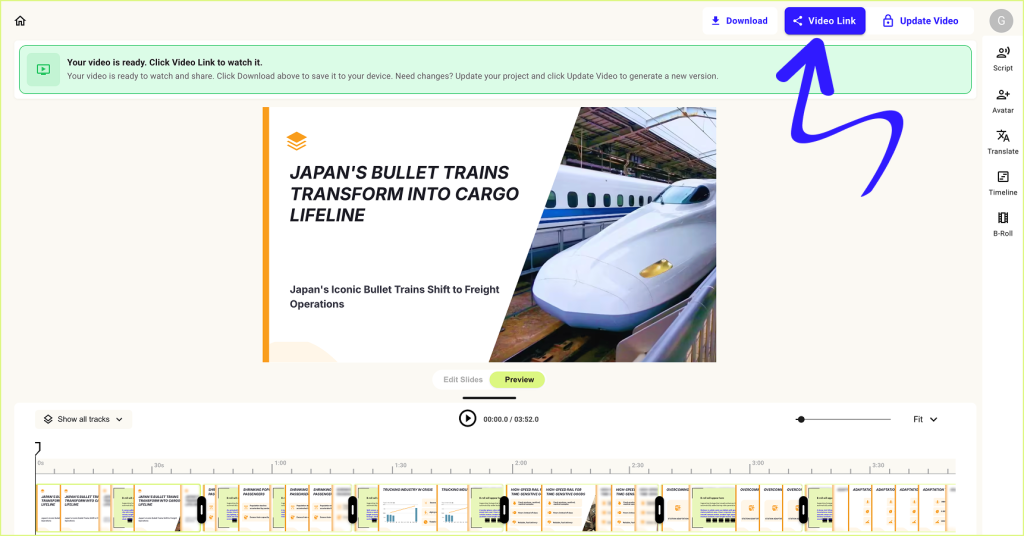
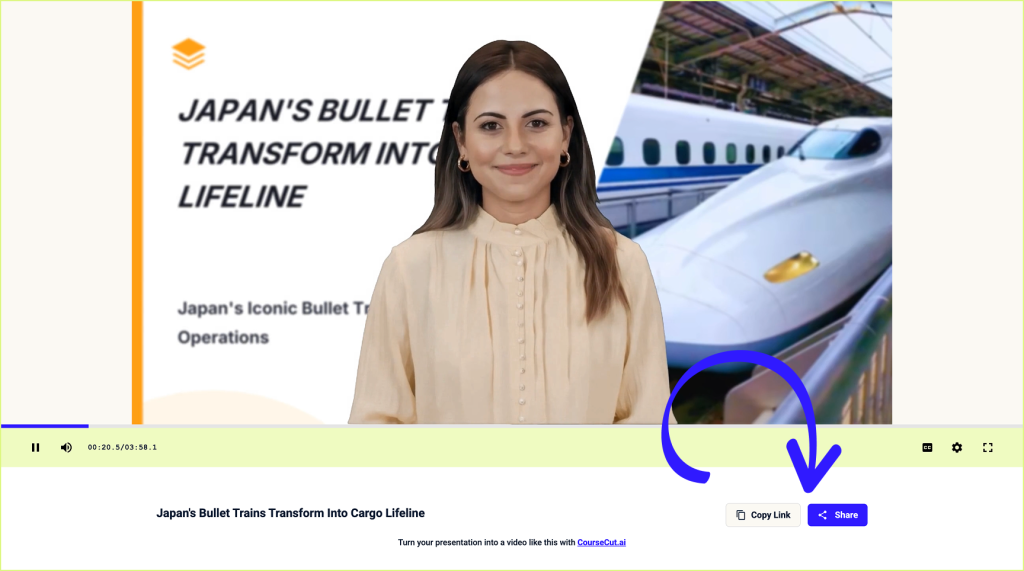
Once your video is ready, open it from the email notification. You can also go to the project in your CourseCut AI dashboard and click Video Link to watch your final video.
Watch Video
That’s it. You have created your first video with CourseCut AI.
The video link is public, so you can share it directly with others without any extra setup.
Share Video
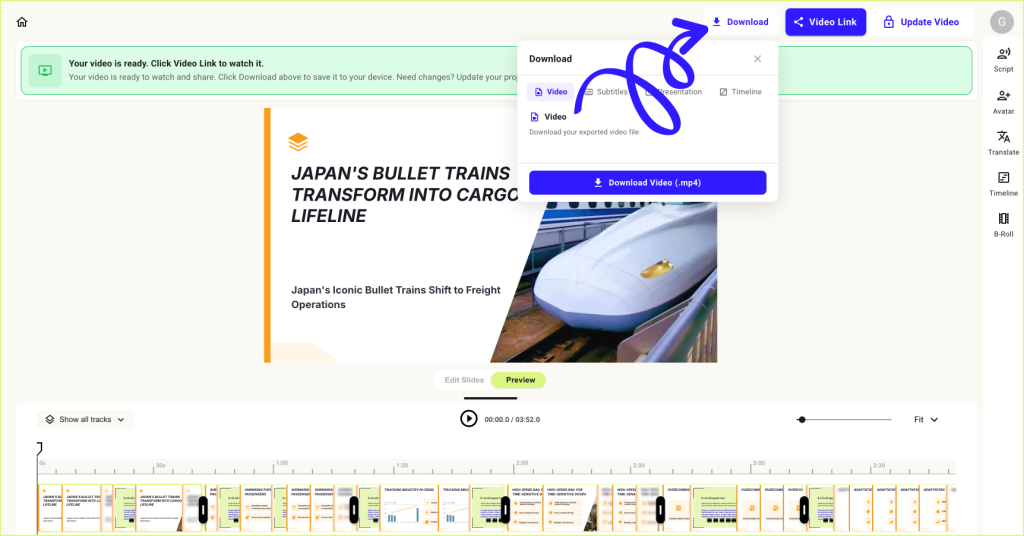
You can also download the video by clicking Download on the project page and use it however you need.
Download Video
Final Thoughts
Creating a polished video from a presentation used to take hours of scripting, recording, editing, captioning, and post-production.
That level of ease was not really possible before. But with AI, it is.
People who start using these tools early will have an advantage. They will be able to turn ideas, lectures, training material, YouTube videos, course content, product explainers, and presentations into videos much faster than before.
So what are you waiting for?
Your first CourseCut AI video is just a few minutes away. Go to CourseCut.ai, upload your PowerPoint (PPTX) or PDF, and let AI turn your presentation into a polished video.
They are used for lectures, training programs, startup decks, sales presentations, webinars, internal updates, YouTube explainers, online courses, product demos, and almost every kind of structured communication.
In many cases, the hard work is already done. The slides have the structure. They have the key points. They have the diagrams, tables, images, examples, and flow. You may have spent hours building the deck, fixing every small detail, correcting every figure, and making sure each slide says exactly what you want it to say.
But PowerPoint is limited by its format.
A presentation works well when you are presenting it live to an audience. It works when you are on a Zoom or Google Meet call and you are there to explain each slide, add context, answer questions, and guide attention.
But what happens when you simply send the deck to someone?
It lands in their inbox as another attachment. They may not feel tempted enough to open it. Even if they do open it, they may not understand the full story because you are not there to explain it. The key point may get missed. The flow may not be obvious. The impact may be lost.
And then the deck is dead.
All the effort of building it, polishing it, and perfecting it becomes a one-time file that may never be properly consumed.
Now imagine another scenario.
Instead of sending a PowerPoint attachment, you send a video. The video has the slides, but it also has narration. It has pacing. It has movement. It has a presenter explaining the idea. The recipient does not have to guess what you meant. They hear the story exactly the way you wanted to tell it.
A video also stands out in a crowded inbox. People are often more willing to click a video than open another PPT file. It feels easier to consume, more complete, and more personal.
And the value does not end there.
You can post the same video on YouTube, embed it in your website, use it in an LMS, share it with prospects, send it to students, include it in onboarding, or use it as part of your marketing. Unlike a live presentation, the video keeps working after you create it. It can continue to explain your idea, attract inbound interest, and spread your message long after the original effort is done.
That is the real promise of converting PowerPoint to video.
But there is one important catch.
We do not just need a video. We need a video that people can actually watch.
The goal is not just PPT to MP4.
The goal is PPT to a video people can actually watch.
That is why we are comparing the best ways to convert PowerPoint presentations into videos. Some tools simply export your slides as a video file. Some let you record narration manually. Some add AI avatars. And some newer AI tools try to understand the presentation itself and turn it into a more complete video experience.
In this blog, we will look at the top PPT-to-video tools, what they are good at, where they require manual effort, and which option may be the right fit for your use case.
Not All PowerPoint-to-Video Tools Work the Same Way
When people search for a tool to convert PowerPoint to video, they usually expect one simple workflow:
Upload a PPT. Click a button. Get a finished video.
But in reality, different tools solve very different parts of the problem.
One way to compare them is to look at the workflow they follow.
1. The Basic Export Workflow
This is the simplest approach. The tool converts your slides into an MP4 video file.
It is useful when you only need a basic video version of your deck. But it still leaves you with the work of writing narration, recording audio, setting slide timing, adding captions, and making the video engaging.
2. The Manual Recording Workflow
In this workflow, you present the slides yourself and record your screen, voice, and sometimes your camera.
This gives the video a human touch, but it also means you need to record carefully, avoid mistakes, clean up the audio, edit the video, and produce the final version manually.
3. The Narration-Only Workflow
Some tools help you add a voiceover to your slides. You may provide the script yourself, or the tool may help generate basic narration.
This is better than a silent slide video, but it does not automatically solve the bigger video problems: pacing, visual movement, presenter placement, B-roll, captions, or editing.
4. The Avatar Overlay Workflow
Some tools let you add an AI avatar to your presentation video.
This can make the video feel more human, but the avatar often behaves like an overlay. You may still need to write the script, set up the timeline, decide where the avatar appears, and adjust the layout manually. In many cases, the avatar stays fixed in one corner, whether or not that is the best layout for the slide.
5. The AI Video Director Workflow
This is the newer AI-first approach, made possible by recent advances in AI.
Instead of treating the PowerPoint as a set of static slides, the tool tries to understand the presentation and direct the video for you. It can help write the narration, decide how the avatar should appear, guide attention with zooms, add B-roll, generate captions, create subtitles, translate the video, and still give you editing control after the first draft is created.
In other words, it takes away much of the manual production work that usually comes after the deck is ready.
This difference matters because the real challenge is not exporting a PowerPoint as a video file.
The real challenge is turning a slide deck into a video people can actually watch.
Types of PowerPoint-to-Video Workflows Compared
Before choosing a tool, it helps to understand what kind of PowerPoint-to-video workflow you actually need.
Workflow
What it does
Manual effort
Best suited for
Basic Export Workflow
Converts slides into an MP4 video file
High
Simple sharing, archive videos, basic internal use
Manual Recording Workflow
Lets you record yourself presenting the slides
High
Lectures, webinars, screen-recorded tutorials
Narration-Only Workflow
Adds voiceover to slides
Medium to high
Simple explainers, narrated decks, internal training
Best for: Turning existing PowerPoint presentations into polished explainer, training, course, and YouTube-style videos.
CourseCut AI is built around a very specific problem: you already have a PowerPoint presentation, and you want to turn it into a video without doing the entire production process manually.
Instead of treating the PPT as a set of static slides, CourseCut tries to understand the presentation and help convert it into a complete video experience. It can help write the narration, add an AI avatar, decide when the avatar should appear full-screen or as a smaller circular presenter, zoom into slide elements when attention needs to be guided, and add B-roll, sound effects, background music, captions, and subtitles.
This is useful because a good presentation video is not just a slide deck with audio. It needs pacing. It needs visual movement. It needs the viewer to know where to look. It needs narration that connects the slides into a story.
CourseCut also gives editing control after the video is generated, so the output is not locked. You can refine the video, adjust parts of the narration, update visuals, and prepare the final version for YouTube, LMS platforms, training modules, product education, or internal communication.
Another useful feature is translation. Since CourseCut works with the presentation content and narration flow, it can help translate the video into multiple languages. It can also generate SRT subtitle files, which are useful when uploading videos to YouTube, learning platforms, or other content systems.
Workflow type: AI Video Director Workflow
Where it stands out: CourseCut does not just convert slides into a video file. It helps turn a PowerPoint deck into a watchable video with narration, presenter presence, movement, captions, and editing control.
Best suited for: educators, universities, corporate L&D teams, course creators, YouTube educators, SaaS teams, startup founders, and anyone who wants to turn existing presentations into videos with less manual production work.
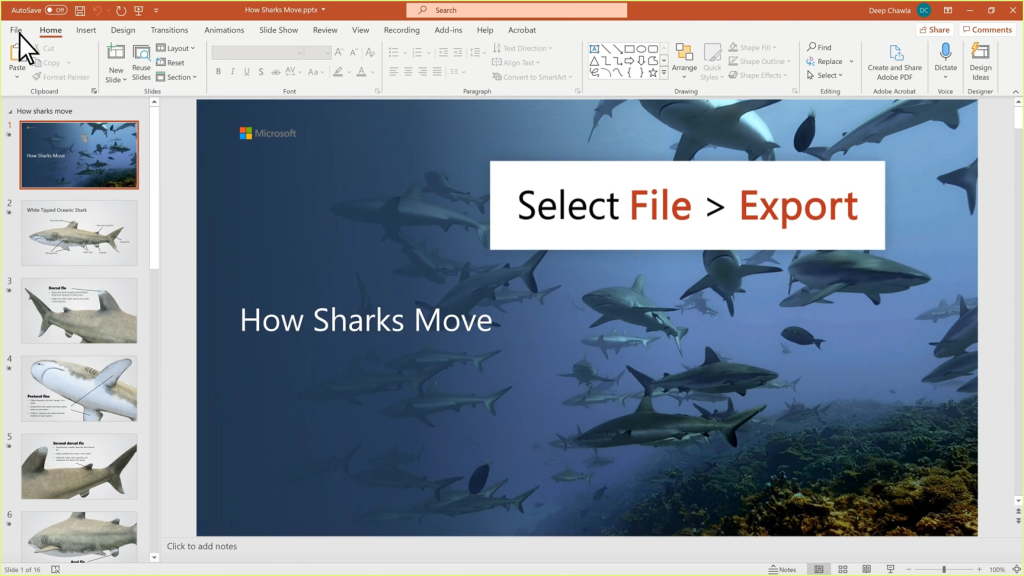
The simplest way to convert a PowerPoint presentation into a video is to use PowerPoint itself.
If your goal is only to create a basic MP4 file from your slides, this can work well. You can set slide timings, add transitions, record narration, and export the presentation as a video.
This is useful for simple internal sharing, archived presentations, or cases where the slides already have enough information on them.
But PowerPoint has an important limitation. It converts the format, but it does not really transform the experience.
If you want the video to feel engaging, you still need to do most of the work yourself. You need to write or record the narration, decide the pacing, add visual movement, create captions, and make sure the viewer understands the story without you being present.
Workflow type: Basic Export Workflow
Where it stands out: It is simple, familiar, and already available to most PowerPoint users.
Best suited for: basic MP4 exports, internal sharing, simple narrated decks, and presentations where you do not need AI avatars, B-roll, translation, or advanced editing.
Best for: Creating simple, good-looking video presentations.
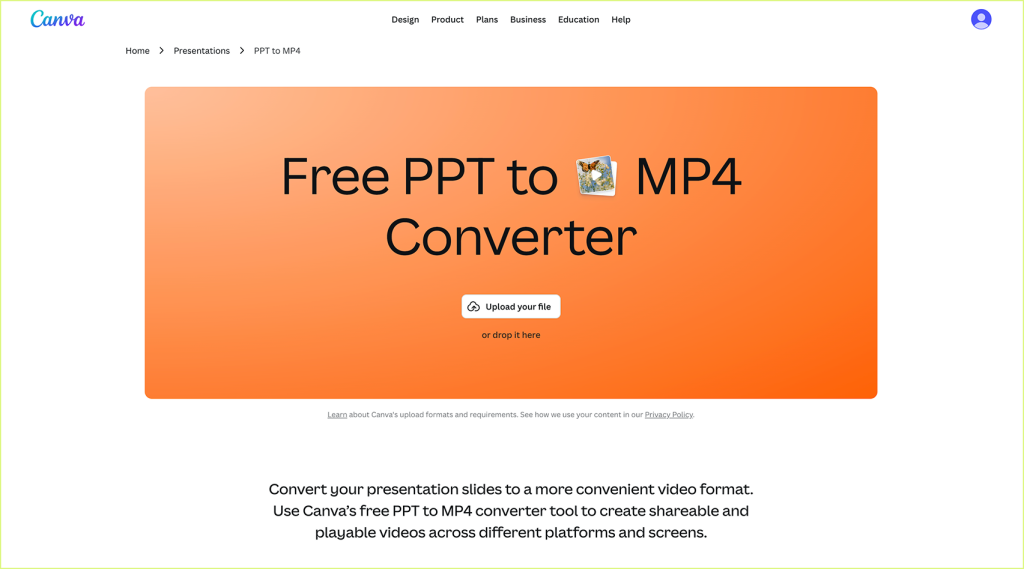
Canva is a strong option if you want your presentation video to look visually polished without using a complex video editor.
You can create or import presentation slides, add design elements, record yourself, add audio, use templates, and export the result as a video. For many users, Canva feels easier and more modern than traditional presentation or video editing tools.
It works especially well when your goal is a short presentation video, a social media explainer, a simple pitch video, or a branded visual update.
The limitation is that Canva is still more of a design and video creation tool than an AI PowerPoint-to-video director. You may still need to write the narration, manage timing, add voiceover, adjust visuals, and manually shape the final video.
Where it stands out: Canva is easy to use, visually polished, and great for design-led presentation videos.
Best suited for: creators, marketers, students, startup founders, social media teams, and anyone who wants a clean presentation-style video with more design control.
Best for: AI avatar-led corporate and training videos.
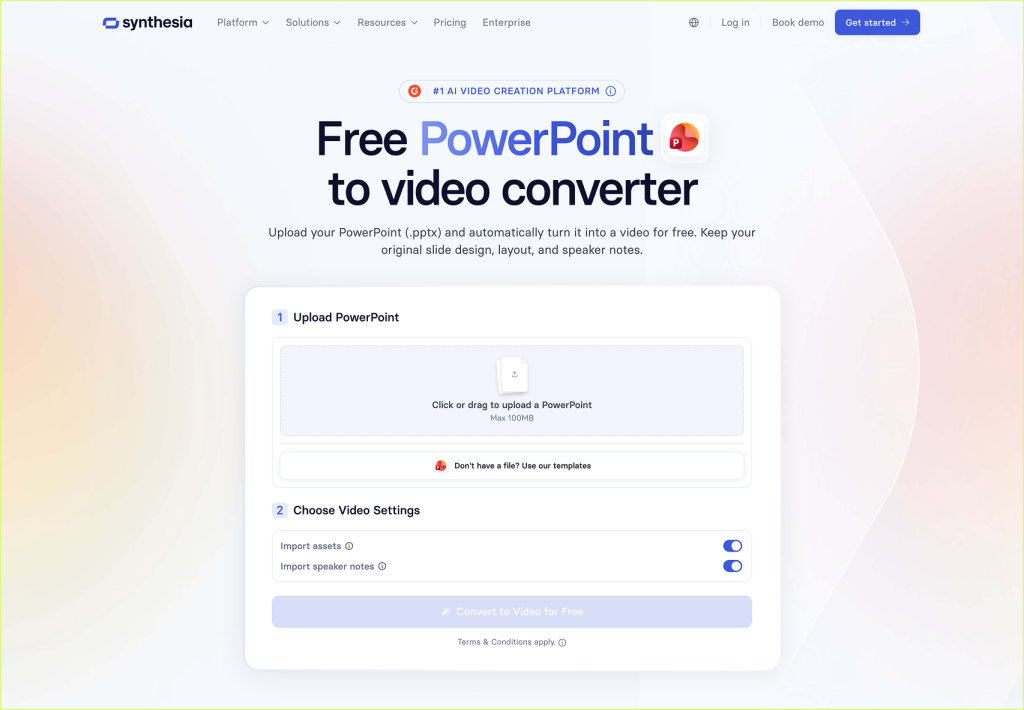
Synthesia is one of the most well-known AI avatar video platforms. It is useful when you want a professional-looking presenter video without recording yourself on camera.
For PowerPoint users, Synthesia does support PowerPoint import. You can upload a PPTX file, convert slide elements into editable objects, use speaker notes as a script, and add an AI avatar to narrate the video.
However, Synthesia is not really a PowerPoint-native video creation tool. Its strongest workflow is built around Synthesia’s own editor, templates, scenes, scripts, and avatars. That can work very well if you are creating polished corporate videos inside Synthesia. But if you already have a detailed PowerPoint deck and want to preserve its natural structure, layout, and presentation flow, the workflow may feel less direct.
In practice, the best results often come when you adapt your content to Synthesia’s video format instead of simply expecting your original PowerPoint to become a finished video automatically. You may still need to refine the script, adjust scenes, choose layouts, manage timing, and make sure the slides and avatar work well together.
Custom avatars are another area to evaluate carefully. Synthesia offers custom avatars, but the setup and generation process may not feel instant, especially compared with newer avatar generation models that focus on speed and flexibility.
Workflow type: Avatar Overlay Workflow
Where it stands out: Synthesia is polished, mature, and strong for professional AI avatar videos.
Best suited for: enterprise teams, corporate L&D, HR teams, internal communication teams, and businesses creating presenter-led training or explainer videos.
Best for: AI avatar videos, marketing explainers, and multilingual presenter-led content.
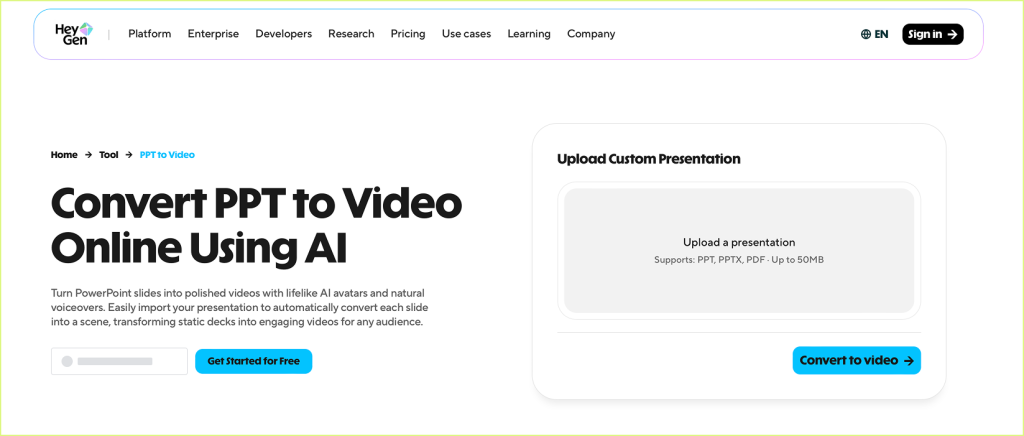
HeyGen is a popular AI video platform known for avatar-led videos, voiceovers, and multilingual video creation. It works well when your main goal is to create a video with an AI presenter speaking from a script.
For PowerPoint users, HeyGen does offer a PPT-to-video workflow, but this does not feel like the strongest part of the product. HeyGen is primarily an AI avatar platform, and its PowerPoint conversion experience may feel less mature than its core avatar video features.
This means it can be useful if you want to bring slide content into an avatar-led video, but you may still need to spend time adapting the content, checking the conversion, refining the script, arranging scenes, adjusting timing, and making sure the avatar and slide layout work well together.
HeyGen is especially useful for marketing videos, sales explainers, creator content, product updates, and multilingual communication where the presenter experience matters more than preserving the exact structure of a detailed PowerPoint deck.
Workflow type: Avatar Overlay Workflow
Where it stands out: HeyGen is flexible, modern, and strong for AI avatar-led videos and multilingual content.
Best suited for: marketers, creators, sales teams, product teams, and businesses creating avatar-led videos from scripts, slides, or marketing material.
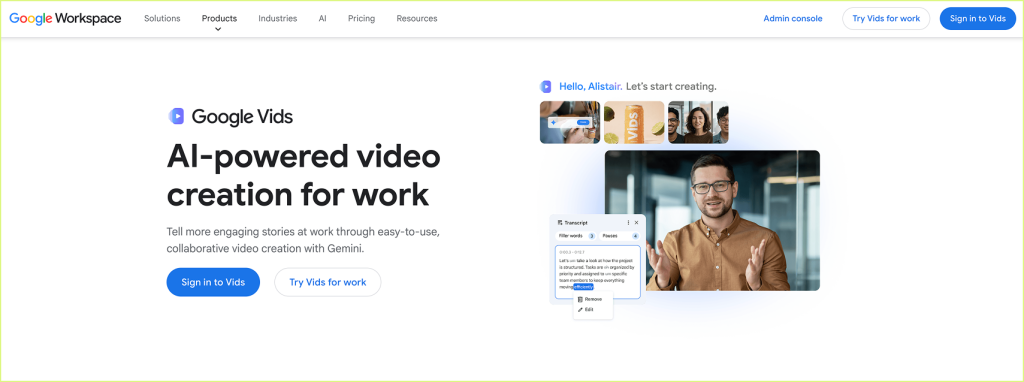
Best for: Workplace videos inside the Google Workspace ecosystem.
Google Vids is Google’s video creation tool for workplace communication. It is designed to help teams create videos for training, onboarding, announcements, support, and internal updates.
Its biggest advantage is that it fits naturally into the Google ecosystem. If your team already works with Google Docs, Google Slides, Drive, and Meet, Google Vids may feel familiar and easy to adopt.
However, Google Vids is not primarily a PowerPoint-to-video converter. It works more naturally with Google Slides than with native PowerPoint files. This matters because Google Slides is only a subset of what PowerPoint can do. If your PPT uses detailed animations, complex formatting, advanced layouts, charts, or other PowerPoint-specific features, you may not get the full PowerPoint experience carried into the video workflow.
Availability is also something to consider. Google Vids is mainly available through eligible Google Workspace Business and Enterprise plans, with some consumer access through Google AI plans. It is not a simple standalone PPT-to-video tool that anyone can use independently.
Google Vids also has AI-assisted features such as script generation, voiceovers, background music, and AI avatars. But it is still better understood as an emerging workplace video tool rather than a dedicated PowerPoint-to-video platform. It is useful for simple workplace videos, but may feel limited if you want a branded custom avatar, slide-aware zooms, B-roll, sound effects, subtitles, translation, and detailed editing control from the original PPT.
Workflow type: AI-Assisted Workplace Video Workflow
Where it stands out: Google Vids is useful for teams already working inside Google Workspace and creating internal workplace videos.
Best suited for: corporate teams, internal communication, onboarding videos, process explainers, workplace announcements, and simple training content.
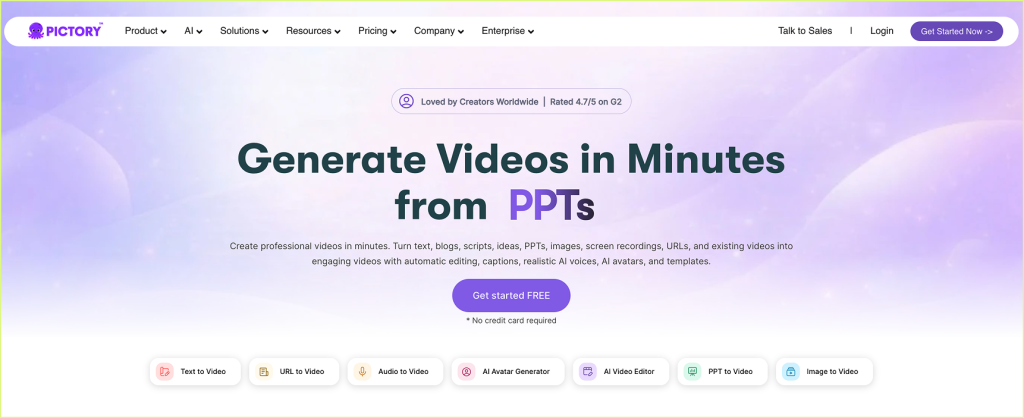
Best for: Turning scripts, articles, and existing content into short videos.
Pictory is an AI video creation tool that is especially useful for repurposing content. It can help turn written material, scripts, blog posts, and other source content into videos with stock visuals, captions, and voiceover.
For PowerPoint users, Pictory can be useful if you want to take the ideas from your slides and turn them into a more general explainer or marketing video. It can help with visual creation, summarization, and video formatting.
However, Pictory is not primarily a PowerPoint-native video director. It is better understood as a content-to-video tool. If you have a detailed PPT with carefully designed slides, diagrams, tables, layouts, animations, or a specific presentation flow, you may still need to adapt the content before it becomes a polished video.
It is a good option when the final video does not need to preserve the exact PowerPoint structure. But if your goal is to convert an existing deck into a narrated, slide-aware, editable video, you may need a more PPT-first workflow.
Workflow type: Content-to-Video Workflow
Where it stands out: Pictory is useful for repurposing written content into short videos with stock visuals and captions.
Best suited for: marketers, creators, bloggers, social media teams, and businesses repurposing existing content into short-form or explainer videos.
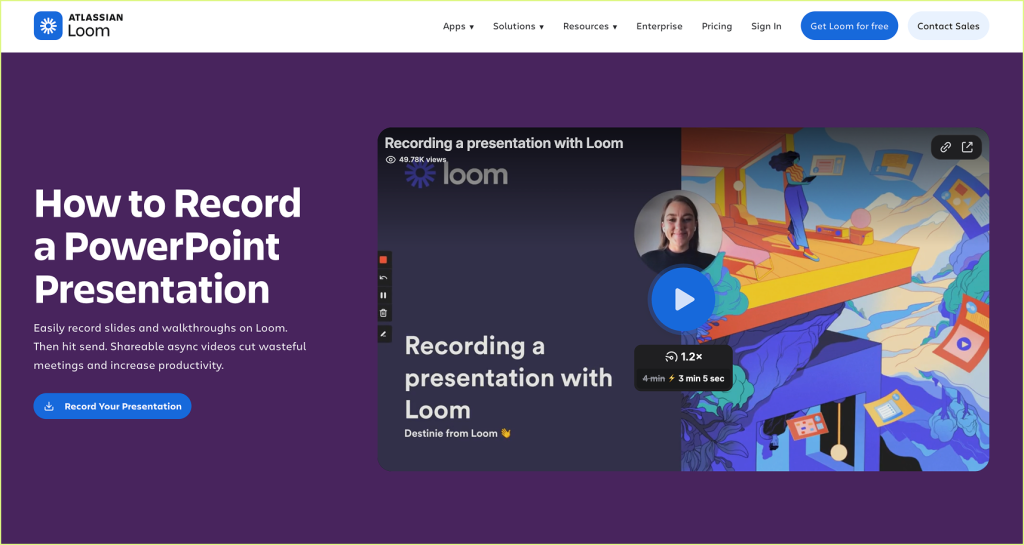
Best for: Quickly recording yourself presenting a PowerPoint.
Loom is not a PowerPoint-to-video converter in the traditional sense. But it is one of the simplest ways to turn a presentation into a video.
You open your PowerPoint deck, record your screen, turn on your camera if you want, and talk through the slides. When you are done, Loom gives you a shareable video link that you can send to a client, student, colleague, prospect, or team member.
This works well when speed matters more than polish. It is useful for quick walkthroughs, async updates, internal explanations, product demos, and situations where you want your voice and face to be part of the communication.
The limitation is that Loom depends heavily on your live recording. You still need to speak clearly, present in one take or edit later, manage mistakes, and make the video engaging yourself. It will feel personal, but it may not feel like a polished explainer video unless you put in additional editing effort.
Workflow type: Manual Recording Workflow
Where it stands out: Loom is fast, simple, and excellent for quick async presentation recordings.
Best suited for: founders, sales teams, educators, managers, product teams, and anyone who wants to quickly explain a deck without building a fully produced video.
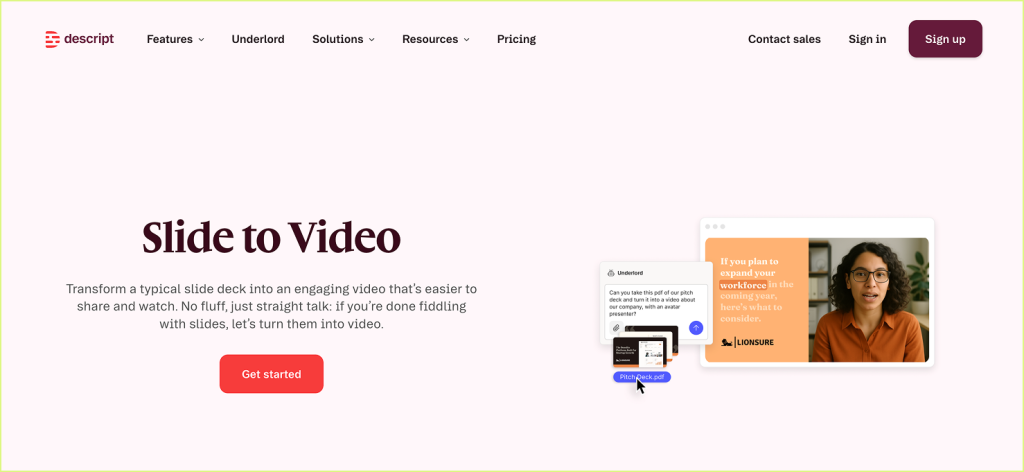
Descript is not mainly a PowerPoint-to-video converter. It is better understood as a video and audio editing tool that becomes useful after you have recorded your presentation.
A common workflow is simple: record yourself presenting your PowerPoint, import the recording into Descript, and then edit the video like a document. You can remove mistakes, clean up the narration, add captions, adjust audio, and prepare a more polished final video.
This is useful if you are comfortable recording your own presentation but want an easier way to edit it afterward. It is especially helpful for lectures, tutorials, webinars, training videos, and talking-head explainers.
The limitation is that Descript does not remove the recording work. You still need to present the deck yourself, capture the video, and then spend time editing. It helps with post-production, but it does not automatically turn your PPT into a finished video from the deck itself.
Workflow type: Recording Editing Workflow
Where it stands out: Descript makes editing recorded videos much easier, especially with text-based editing and captions.
Best suited for: educators, trainers, podcasters, creators, webinar hosts, and teams that already record presentations and want to edit them faster.
Best for: Editing, captioning, and polishing presentation videos online.
VEED is an online video editing platform that can be useful after you have already created or recorded a presentation video.
For example, you may export your PowerPoint as a video, record yourself presenting with Loom, or create a rough presentation video using another tool. Then you can use VEED to add captions, clean up the video, resize it for different platforms, add branding, include music, trim sections, and prepare the final version for sharing.
This makes VEED useful as a finishing tool. It is especially helpful when your main need is editing and polishing rather than generating the video directly from the PowerPoint.
The limitation is that VEED does not fully remove the work of converting the PPT into a video in the first place. You still need to create or record the presentation video before editing it. It is strong for post-production, but not necessarily a complete PowerPoint-to-video workflow by itself.
Workflow type: Online Video Editing Workflow
Where it stands out: VEED is simple, browser-based, and useful for captions, resizing, branding, and quick editing.
Best suited for: creators, marketers, educators, social media teams, and businesses that already have a presentation video and want to polish it before sharing.
Quick Comparison: Which PowerPoint-to-Video Tool Should You Choose?
Turning PPTs into narrated, avatar-led, editable and multilingual videos
AI Video Director Workflow
Newer tool compared with older video platforms
Microsoft PowerPoint
Basic PPT to MP4 export
Basic Export Workflow
Converts format, but does not add much video polish
Canva
Good-looking presentation videos
Manual Creation / Design Workflow
Requires manual setup for narration, timing, and video flow
Synthesia
Corporate avatar-led videos
Avatar Overlay Workflow
Stronger inside its own video editor than as a PPT-native tool
HeyGen
AI avatar and multilingual videos
Avatar Overlay Workflow
PPT-to-video workflow may feel less mature than its avatar features
Google Vids
Workplace videos inside Google Workspace
AI-Assisted Workplace Video Workflow
Limited by Workspace availability and not fully PPT-native
Pictory
Repurposing written content into short videos
Content-to-Video Workflow
Not ideal for preserving detailed PowerPoint structure
Loom
Quick recorded presentation walkthroughs
Manual Recording Workflow
Depends on your live recording and presentation quality
Descript
Editing recorded presentation videos
Recording Editing Workflow
Useful after recording, but does not convert PPT directly
VEED
Captioning and polishing videos online
Online Video Editing Workflow
Best as a finishing tool, not a full PPT-to-video workflow
Which Tool Is Best for Your Use Case?
The best PowerPoint-to-video tool depends on what you are trying to create.
If you only need a basic MP4 version of your slides, Microsoft PowerPoint may be enough.
If you want a visually polished presentation video and are comfortable designing it manually, Canva is a good choice.
If you want to quickly record yourself presenting a deck, Loom is the fastest option.
If you already have a recorded presentation and want to edit it properly, Descript or VEED can help.
If your main goal is to create an AI avatar-led corporate video, Synthesia and HeyGen are worth considering.
If your team already works deeply inside Google Workspace and wants simple internal videos, Google Vids may be useful.
If you want to repurpose written content or slide ideas into short videos, Pictory can be a good fit.
But if your starting point is an existing PowerPoint deck and your goal is to turn it into a narrated, avatar-led, editable video with AI help, CourseCut AI is built specifically for that workflow.
It is especially useful when you want the tool to help with the actual video-making work: narration, avatar placement, zooms, B-roll, captions, subtitles, translation, music, sound effects, and editing control.
Final Thoughts
PowerPoint is still one of the best ways to structure ideas.
It helps you organize a lecture, pitch a startup, explain a product, build a course, present a report, or share a strategy. But once the presentation leaves the live meeting or classroom, the format starts to show its limits.
A slide deck needs someone to explain it.
That is why converting PowerPoint to video is becoming so useful. A video can carry your narration, your pacing, your emphasis, and your story. It can be shared over email, uploaded to YouTube, embedded into an LMS, used in onboarding, sent to prospects, or reused as long-form content that keeps working after the first presentation is over.
The right tool depends on how much of the work you want to do yourself.
If you only need a basic export, PowerPoint can do the job. If you want to record yourself, Loom is fast. If you want to edit a recording, Descript and VEED are useful. If you want avatar-led corporate videos, Synthesia and HeyGen are strong options. If you want simple workplace videos inside Google Workspace, Google Vids may fit your team.
But if your goal is to turn an existing PowerPoint into a complete video experience, the workflow matters.
You do not just need PPT to MP4.
You need PPT to a video people can actually watch.
That means narration, pacing, visual movement, presenter presence, captions, B-roll, subtitles, translation, and the ability to edit the final output.
That is where AI-first PowerPoint-to-video tools like CourseCut AI are especially useful. They are designed for the gap between having a finished deck and needing a finished video.
Because the real value is not just in converting the file.
The real value is in making your ideas easier to watch, understand, share, and remember.
Creating presentations has long been dominated by Microsoft PowerPoint and Google Slides, with alternatives like LibreOffice Impressand Prezi in the mix. PowerPoint remains the most widely used worldwide, while Google Slides has become the go-to for collaboration. Prezi, once known for its zooming canvas, has also reinvented itself with AI-driven storytelling.
But the way we make presentations is evolving. AI-powered PPT makers (sometimes called AI PowerPoint generators, AI PPT makers, or free AI presentation makers) now allow you to generate entire slide decks in minutes. Instead of starting with a blank slide, you can enter a short prompt or upload files, and AI will create layouts, visuals, and text for you.
As of 2025, both tech giants (Microsoft and Google) and newer startups are offering powerful PPT AI makers. Let’s explore the top ones worth trying.
Already a household name in design, Canva’s AI presentation generator builds a draft deck from a short prompt. You can then use Canva’s huge library of fonts, templates, and visuals to polish it.
Great for: marketing teams and creators who want design flexibility.
Strength: Combines AI automation with endless customization.
An add-on that brings AI directly into Google Slides. Enter a brief description, and Plus AI generates an outline and suggested slides. It also supports live data integration and custom templates.
Great for: professionals who work primarily in Google Workspace.
Why it stands out: seamless integration with a tool you already use.
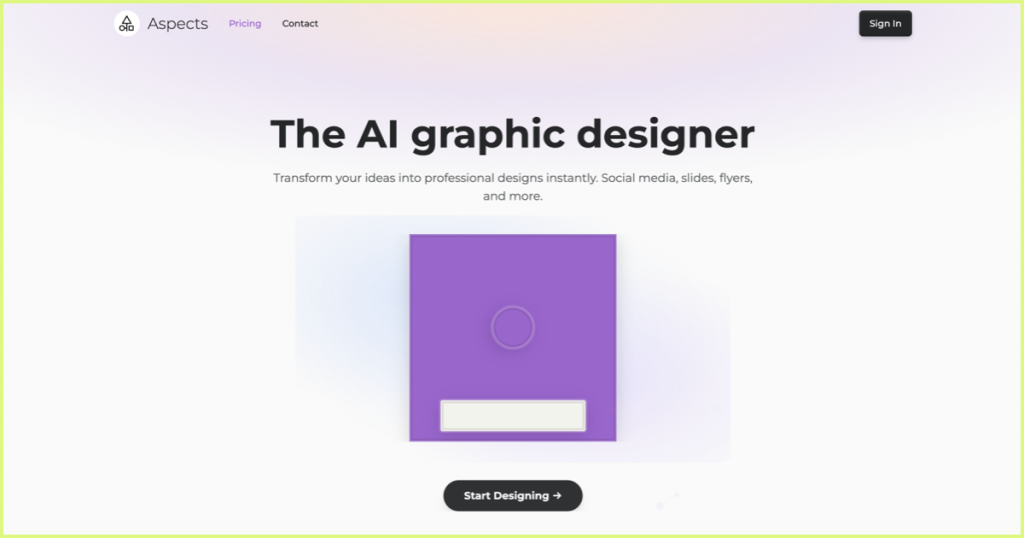
Unlike most AI PPT makers, Aspects focuses on producing a near-finished deck rather than giving you a workspace to tweak. It’s an autonomous slide designer.
Great for: users who want something “done-for-you.”
Caveat: less flexibility if you like making manual edits.
Perfect for educators, trainers, and creators who want to reach wider audiences across YouTube, LMS platforms, or social media.
Conclusion
From established names like Microsoft PowerPoint with Copilot and Google AI Slides to rising stars like Chatslide, Gamma, and NextDocs, there’s no shortage of AI PPT makers in 2025.
Each AI PowerPoint generator has its strengths—some focus on speed, others on design or storytelling. The best choice depends on your needs. And when you want to go beyond static slides, tools like CourseCut.AI help you turn any presentation into an engaging video.
The future of presentations is not just making slides faster—it’s about making them smarter and more versatile.
Multimedia is everywhere in modern education. From MOOCs (think Udemy, Coursera) to corporate training videos and YouTube explainers, learners now expect their content to be visual, dynamic, and engaging. But not all videos are equally effective.
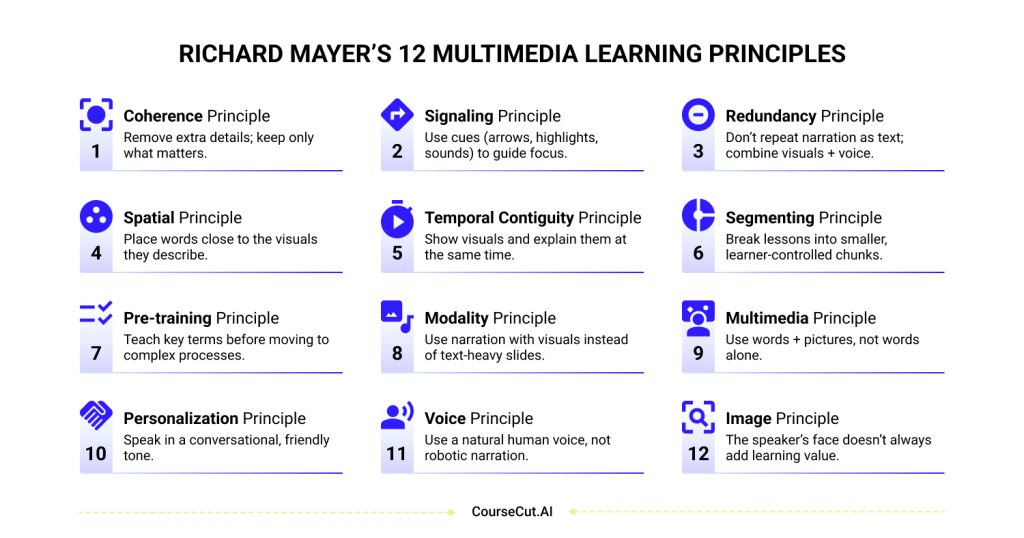
Decades of research by educational psychologist Richard Mayer have shown that the way information is designed matters just as much as the information itself. His 12 Multimedia Learning Principles provide a science-backed framework for creating videos and presentations that actually help people learn.
In this blog, we’ll break down each principle in plain language — with practical takeaways for teachers, course creators, and L&D teams.
The 12 Principles of Multimedia Learning
1. Coherence Principle
Definition: People learn better when unnecessary content is removed. What it means for you: Don’t clutter your slides or videos with decorative images, background music, or long tangents. Focus only on what helps the learner reach the learning goal.
2. Signaling Principle
Definition: People learn better when key information is highlighted with cues. What it means for you: Use arrows, highlights, zoom-ins, or even subtle sound effects to draw attention when introducing an important concept or keyword.
3. Redundancy Principle
Definition: People learn better from graphics and narration than from graphics, narration, and on-screen text. What it means for you: Avoid reading text word-for-word off your slides. Instead, pair narration with visuals. Use text only for key terms or definitions — not to duplicate what’s already being said.
4. Spatial Contiguity Principle
Definition: People learn better when words are placed close to the visuals they describe. What it means for you: If you’re labeling a diagram, put the label right next to the part it refers to. Don’t force learners to keep looking back and forth between the picture and a far-off legend.
5. Temporal Contiguity Principle
Definition: People learn better when visuals and narration are presented at the same time. What it means for you: If you’re explaining a chart, show the chart as you speak. Don’t show the chart first and then talk about it later — timing matters.
6. Segmenting Principle
Definition: People learn better when lessons are broken into smaller, manageable chunks. What it means for you: Instead of recording one 30-minute video, split it into 5–6 shorter segments. Learners can pause, review, and process the content more effectively.
7. Pre-training Principle
Definition: People learn better when they already know the key terms and components. What it means for you: Before teaching a complex process (like how a supply chain works), first explain the key actors (manufacturer, distributor, retailer). A glossary slide or short intro video can go a long way.
8. Modality Principle
Definition: People learn better from graphics and narration than from graphics and text. What it means for you: Don’t overload your slides with written explanations. Use spoken narration to explain visuals, and keep the slides clean and minimal.
9. Multimedia Principle
Definition: People learn better from words and pictures than from words alone. What it means for you: Instead of listing bullet points, illustrate concepts with diagrams, animations, or icons. A simple picture often conveys more than a sentence.
10. Personalization Principle
Definition: People learn better when narration uses a conversational tone. What it means for you: Speak as if you’re talking to the learner directly — use “you” and “we” instead of overly formal language. It builds connection and makes the material feel approachable.
11. Voice Principle
Definition: People learn better from a natural human voice than from a robotic one. What it means for you: If you’re using AI avatars or text-to-speech, choose options that sound warm and human. Learners connect better when the voice feels real.
12. Image Principle
Definition: Adding the speaker’s face to the screen does not always improve learning. What it means for you: Learners benefit most from clear visuals and explanations. Including your face or avatar can help with connection, but don’t let it distract from the content itself.
Conclusion
Mayer’s 12 Multimedia Principles are not just theory — they’re a blueprint for effective teaching in the digital age. They remind us that learning happens best when we design for the brain: reducing clutter, guiding attention, and aligning visuals with narration.
If you’ve ever created a PowerPoint presentation, you know the effort it takes. You might spend four or five days perfecting the content and design — only to present it once to a class of 40–50 people and then let it sit in a folder, never to be opened again. That presentation is effectively dead.
The new age of teaching is different. Instead of being a one-time event, your presentation can be evergreened by turning it into a video. A video has reach far beyond the classroom — tens of thousands of learners can access it on platforms like YouTube, or through MOOCs (think Coursera, edX).
PowerPoint has been a great backbone of teaching. It’s concise, it’s visual, and it’s an excellent assistant to the teacher in the room. But in today’s digital-first learning world, slides alone are not enough.
And here’s the catch: while video is the obvious next step, making a good one is hard. Really hard. Or is it? Could there be a ChatGPT-like AI for turning slides into videos? Let’s explore.
The Traditional Workflow: Effective, But Demanding
So what does it actually take to turn a PowerPoint into a proper course video today? For most teachers and trainers, it’s not a one-step process. It’s a marathon.
It usually looks something like this:
Build your slides — carefully arranging text, visuals, and animations.
Write a script — because slides don’t explain themselves.
Record — which means lights, cameras, microphones, and a quiet room.
Re-record — because mistakes happen, and the first few takes rarely feel right.
Go back and forth on edits — trimming, syncing, pacing, and polishing until it feels just right.
Add finishing touches — sound effects, B-rolls, and transitions, all of which take time and budget.
By the time you’re done, that one video might have taken weeks of effort and more resources than most educators or trainers can justify.
This is why many large universities have invested in dedicated video production studios — with full teams, professional equipment, and big budgets to digitize their courses. That’s great for them, but what about individual teachers, smaller institutions, or independent creators?
For most, the traditional workflow is simply too heavy to scale.
Where Current Tools Help — and Where They Don’t
Over the past decade, new tools have made video creation easier than ever.
All of these have contributed to making video more accessible. But the question isn’t just “can we make a video?” — it’s “can we make a video that supports learning?”
That’s where research gives us important clues:
Framing matters. A large-scale MIT study of MOOCs (Guo, Kim & Rubin, 2014) found that learners engage more when the instructor is visible alongside slides (picture-in-picture or side-by-side) rather than just narration. Videos under six minutes also showed far higher completion rates.
Slide + person is better than slide alone. Richard Mayer’s multimedia learning research (Mayer, 2009; Fiorella & Mayer, 2018) shows that combining instructor presence with visuals improves both attention and recall.
Eye contact builds trust. Research on instructional video design (Kizilcec et al., 2015; Beege et al., 2023) demonstrates that learners perceive instructors as more credible and stay more engaged when they make eye contact with the camera.
Dynamic visuals help. Static slides alone quickly lose attention. Experiments show that highlighting, zooming, or animating key elements while speaking about them improves retention (Fiorella & Mayer, 2018).
Sound cues matter.Mayer & Moreno (2003) demonstrated that even subtle audio signals when a new idea appears help learners focus on the right content at the right time.
Eye-tracking research. Recent reviews (Deng et al., 2022 — link) confirm that learners split attention between the instructor and slides. Good design aligns the two so learners don’t have to choose.
When we look at current tools through this lens, the gap becomes clear:
Screen recorders capture slides and voice, but miss instructor presence and signaling.
Avatar platforms add presence, but often ignore PowerPoint animations or eye contact.
Professional editors can achieve it all — but only with significant expertise, time, and budget.
So while today’s tools make it easier to create videos, they don’t always make it easier to create effective learning videos.
How AI Can Reshape Course Video Creation
The traditional workflow is long and costly. Current tools help in parts, but they don’t always make videos that truly support learning. This is where AI changes the game.
Instead of weeks of scripting, recording, and editing, imagine this:
You upload your PowerPoint slides.
AI adds signals and cues — a gentle sound when a new idea appears, or a highlight on the keyword being explained.
The instructor (or an AI avatar) appears alongside the slides, creating presence and connection while keeping the content central.
Animations and B-rolls are layered in to make abstract concepts clearer and more memorable.
The pacing, transitions, and even sound design are all taken care of — automatically.
And with a click, the same video can be translated into multiple languages — extending education to remote learners, local communities, and even languages that rarely see high-quality digital content.
What once required a camera crew, professional editors, and weeks of effort can now be done in minutes. And most importantly, the end result is not just a video — it’s a learning experience that holds attention, breaks language barriers, and makes knowledge accessible anywhere.
Our Mission
Education has always been about access. The classroom made it possible for dozens of students to learn together. The internet made it possible for thousands to join MOOCs and online platforms. The next leap is making high-quality learning videos available to anyone, anywhere, in any language.
We believe technology should not replace teachers, but amplify them. A great teacher with a simple PowerPoint presentation should be able to reach the same scale and impact as a university with a video studio.
Our mission is to make professional-quality learning videos accessible to every educator, trainer, and institution — no matter their size, budget, or technical skill. Because when slides can become engaging videos with presence, clarity, and even multilingual delivery, education stops being confined to one classroom or one language.
The promise of AI in education is not just faster production. It’s about giving every teacher the tools to reach more learners, connect more deeply, and make knowledge last longer.
And this is only the beginning. With rapid advancements in technology, we may soon move beyond videos as passive content. Imagine a world where learners can interrupt an AI avatar mid-video, ask a question, and get their doubts clarified instantly. That’s the kind of future we’re working toward — where teaching is not only scalable, but also interactive and personal.
Conclusion
PowerPoint presentations were a solid backbone for teaching in the past. But in a world where learners expect content online and educators want to reach audiences far beyond their classrooms, video has become the natural next step.
The challenge has always been the effort: weeks of recording, re-recording, and editing — or settling for tools that make videos look polished but don’t fully support how people learn. AI changes this equation. It allows us to bring presence, clarity, cues, animations, and even multilingual delivery into videos in minutes, not weeks.
But this is just the start. The future of learning videos won’t be passive at all. We may soon see AI avatars that can be interrupted mid-lesson, ready to answer a learner’s question in real time — transforming video into an interactive classroom without walls.
The goal is not simply to produce more content, but to create better learning experiences: videos that engage, explain clearly, and scale access to knowledge everywhere. That’s the journey we’re on.