PowerPoint presentations are everywhere.
They are used for lectures, training programs, startup decks, sales presentations, webinars, internal updates, YouTube explainers, online courses, product demos, and almost every kind of structured communication.
In many cases, the hard work is already done. The slides have the structure. They have the key points. They have the diagrams, tables, images, examples, and flow. You may have spent hours building the deck, fixing every small detail, correcting every figure, and making sure each slide says exactly what you want it to say.
But PowerPoint is limited by its format.
A presentation works well when you are presenting it live to an audience. It works when you are on a Zoom or Google Meet call and you are there to explain each slide, add context, answer questions, and guide attention.
But what happens when you simply send the deck to someone?
It lands in their inbox as another attachment. They may not feel tempted enough to open it. Even if they do open it, they may not understand the full story because you are not there to explain it. The key point may get missed. The flow may not be obvious. The impact may be lost.
And then the deck is dead.
All the effort of building it, polishing it, and perfecting it becomes a one-time file that may never be properly consumed.
Now imagine another scenario.
Instead of sending a PowerPoint attachment, you send a video. The video has the slides, but it also has narration. It has pacing. It has movement. It has a presenter explaining the idea. The recipient does not have to guess what you meant. They hear the story exactly the way you wanted to tell it.
A video also stands out in a crowded inbox. People are often more willing to click a video than open another PPT file. It feels easier to consume, more complete, and more personal.
And the value does not end there.
You can post the same video on YouTube, embed it in your website, use it in an LMS, share it with prospects, send it to students, include it in onboarding, or use it as part of your marketing. Unlike a live presentation, the video keeps working after you create it. It can continue to explain your idea, attract inbound interest, and spread your message long after the original effort is done.
That is the real promise of converting PowerPoint to video.
But there is one important catch.
We do not just need a video. We need a video that people can actually watch.
The goal is not just PPT to MP4.
The goal is PPT to a video people can actually watch.
That is why we are comparing the best ways to convert PowerPoint presentations into videos. Some tools simply export your slides as a video file. Some let you record narration manually. Some add AI avatars. And some newer AI tools try to understand the presentation itself and turn it into a more complete video experience.
In this blog, we will look at the top PPT-to-video tools, what they are good at, where they require manual effort, and which option may be the right fit for your use case.
Not All PowerPoint-to-Video Tools Work the Same Way
When people search for a tool to convert PowerPoint to video, they usually expect one simple workflow:
Upload a PPT. Click a button. Get a finished video.
But in reality, different tools solve very different parts of the problem.
One way to compare them is to look at the workflow they follow.
1. The Basic Export Workflow
This is the simplest approach. The tool converts your slides into an MP4 video file.
It is useful when you only need a basic video version of your deck. But it still leaves you with the work of writing narration, recording audio, setting slide timing, adding captions, and making the video engaging.
2. The Manual Recording Workflow
In this workflow, you present the slides yourself and record your screen, voice, and sometimes your camera.
This gives the video a human touch, but it also means you need to record carefully, avoid mistakes, clean up the audio, edit the video, and produce the final version manually.
3. The Narration-Only Workflow
Some tools help you add a voiceover to your slides. You may provide the script yourself, or the tool may help generate basic narration.
This is better than a silent slide video, but it does not automatically solve the bigger video problems: pacing, visual movement, presenter placement, B-roll, captions, or editing.
4. The Avatar Overlay Workflow
Some tools let you add an AI avatar to your presentation video.
This can make the video feel more human, but the avatar often behaves like an overlay. You may still need to write the script, set up the timeline, decide where the avatar appears, and adjust the layout manually. In many cases, the avatar stays fixed in one corner, whether or not that is the best layout for the slide.
5. The AI Video Director Workflow
This is the newer AI-first approach, made possible by recent advances in AI.
Instead of treating the PowerPoint as a set of static slides, the tool tries to understand the presentation and direct the video for you. It can help write the narration, decide how the avatar should appear, guide attention with zooms, add B-roll, generate captions, create subtitles, translate the video, and still give you editing control after the first draft is created.
In other words, it takes away much of the manual production work that usually comes after the deck is ready.
This difference matters because the real challenge is not exporting a PowerPoint as a video file.
The real challenge is turning a slide deck into a video people can actually watch.
Types of PowerPoint-to-Video Workflows Compared
Before choosing a tool, it helps to understand what kind of PowerPoint-to-video workflow you actually need.
| Workflow | What it does | Manual effort | Best suited for |
|---|---|---|---|
| Basic Export Workflow | Converts slides into an MP4 video file | High | Simple sharing, archive videos, basic internal use |
| Manual Recording Workflow | Lets you record yourself presenting the slides | High | Lectures, webinars, screen-recorded tutorials |
| Narration-Only Workflow | Adds voiceover to slides | Medium to high | Simple explainers, narrated decks, internal training |
| Avatar Overlay Workflow | Adds an AI avatar on top of the presentation | Medium | Corporate videos, sales explainers, presenter-style content |
| AI Video Director Workflow | Uses AI to help generate narration, avatar placement, zooms, B-roll, captions, translation, and video structure | Lower | Training videos, online courses, YouTube explainers, LMS content, product education |
The right tool depends on how much work you want the software to do for you.
With that in mind, let’s look at some of the top tools to convert PowerPoint presentations into videos.
1. CourseCut.AI
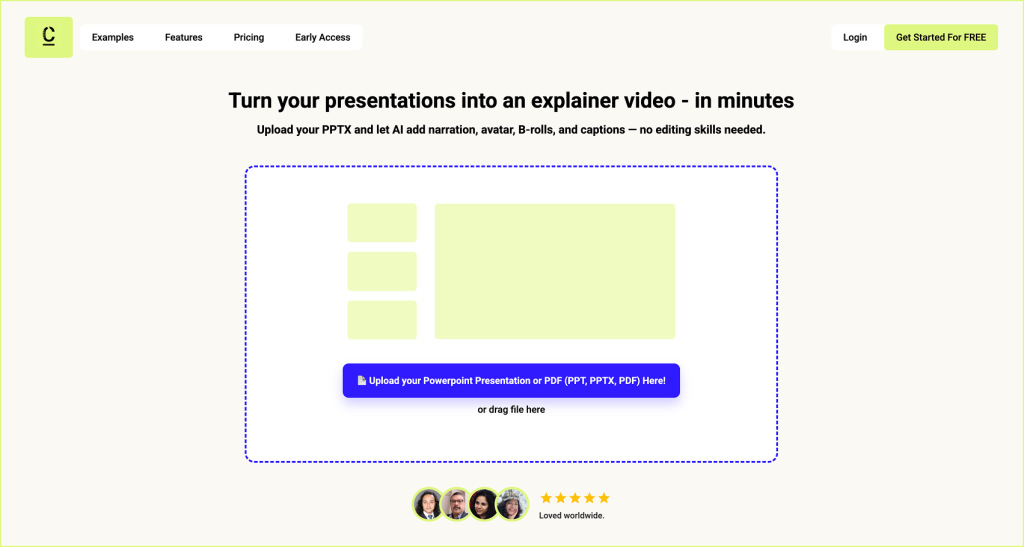
Best for: Turning existing PowerPoint presentations into polished explainer, training, course, and YouTube-style videos.
CourseCut AI is built around a very specific problem: you already have a PowerPoint presentation, and you want to turn it into a video without doing the entire production process manually.
Instead of treating the PPT as a set of static slides, CourseCut tries to understand the presentation and help convert it into a complete video experience. It can help write the narration, add an AI avatar, decide when the avatar should appear full-screen or as a smaller circular presenter, zoom into slide elements when attention needs to be guided, and add B-roll, sound effects, background music, captions, and subtitles.
This is useful because a good presentation video is not just a slide deck with audio. It needs pacing. It needs visual movement. It needs the viewer to know where to look. It needs narration that connects the slides into a story.
CourseCut also gives editing control after the video is generated, so the output is not locked. You can refine the video, adjust parts of the narration, update visuals, and prepare the final version for YouTube, LMS platforms, training modules, product education, or internal communication.
Another useful feature is translation. Since CourseCut works with the presentation content and narration flow, it can help translate the video into multiple languages. It can also generate SRT subtitle files, which are useful when uploading videos to YouTube, learning platforms, or other content systems.
Workflow type: AI Video Director Workflow
Where it stands out: CourseCut does not just convert slides into a video file. It helps turn a PowerPoint deck into a watchable video with narration, presenter presence, movement, captions, and editing control.
Best suited for: educators, universities, corporate L&D teams, course creators, YouTube educators, SaaS teams, startup founders, and anyone who wants to turn existing presentations into videos with less manual production work.
2. Microsoft PowerPoint
Best for: Basic PPT to MP4 export.
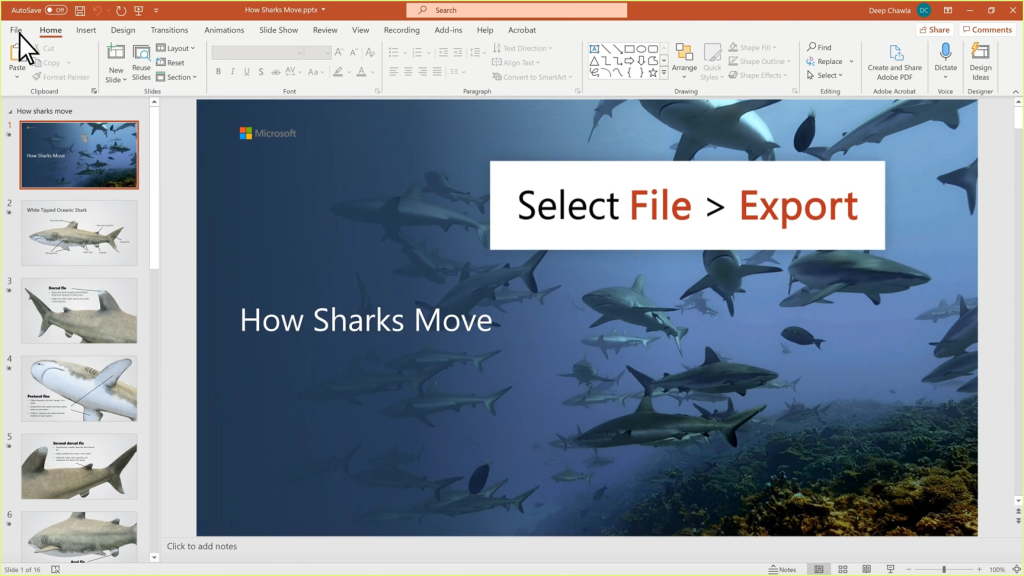
The simplest way to convert a PowerPoint presentation into a video is to use PowerPoint itself.
If your goal is only to create a basic MP4 file from your slides, this can work well. You can set slide timings, add transitions, record narration, and export the presentation as a video.
This is useful for simple internal sharing, archived presentations, or cases where the slides already have enough information on them.
But PowerPoint has an important limitation. It converts the format, but it does not really transform the experience.
If you want the video to feel engaging, you still need to do most of the work yourself. You need to write or record the narration, decide the pacing, add visual movement, create captions, and make sure the viewer understands the story without you being present.
Workflow type: Basic Export Workflow
Where it stands out: It is simple, familiar, and already available to most PowerPoint users.
Best suited for: basic MP4 exports, internal sharing, simple narrated decks, and presentations where you do not need AI avatars, B-roll, translation, or advanced editing.
3. Canva
Best for: Creating simple, good-looking video presentations.
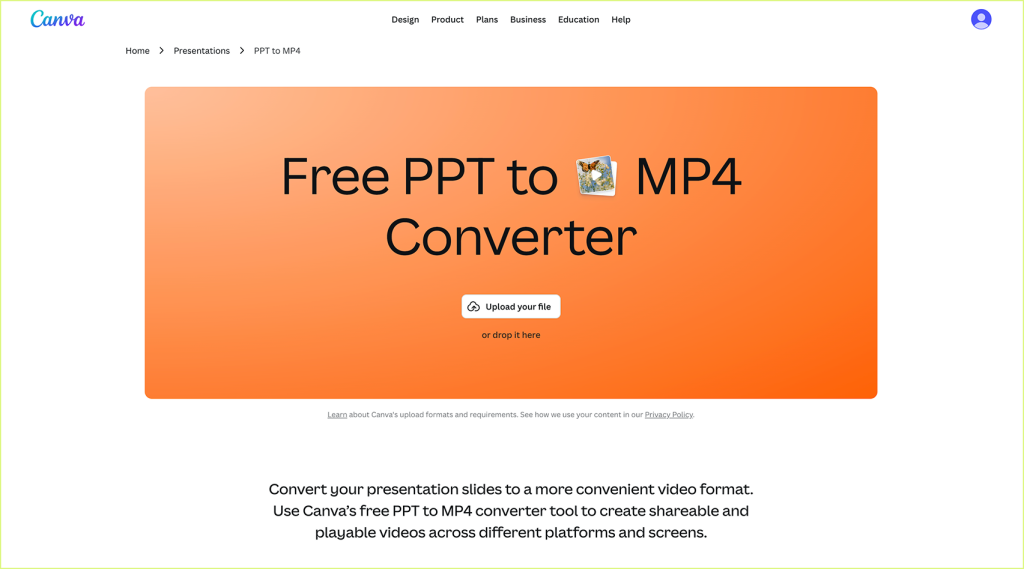
Canva is a strong option if you want your presentation video to look visually polished without using a complex video editor.
You can create or import presentation slides, add design elements, record yourself, add audio, use templates, and export the result as a video. For many users, Canva feels easier and more modern than traditional presentation or video editing tools.
It works especially well when your goal is a short presentation video, a social media explainer, a simple pitch video, or a branded visual update.
The limitation is that Canva is still more of a design and video creation tool than an AI PowerPoint-to-video director. You may still need to write the narration, manage timing, add voiceover, adjust visuals, and manually shape the final video.
Workflow type: Narration-Only Workflow / Manual Creation Workflow
Where it stands out: Canva is easy to use, visually polished, and great for design-led presentation videos.
Best suited for: creators, marketers, students, startup founders, social media teams, and anyone who wants a clean presentation-style video with more design control.
4. Synthesia
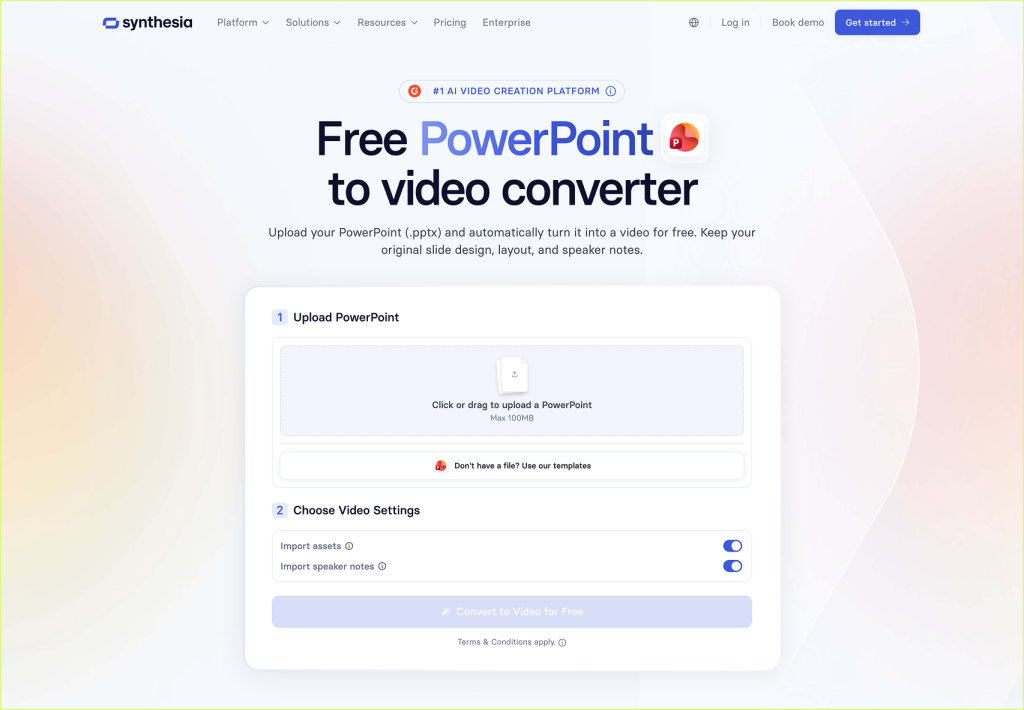
Best for: AI avatar-led corporate and training videos.
Synthesia is one of the most well-known AI avatar video platforms. It is useful when you want a professional-looking presenter video without recording yourself on camera.
For PowerPoint users, Synthesia does support PowerPoint import. You can upload a PPTX file, convert slide elements into editable objects, use speaker notes as a script, and add an AI avatar to narrate the video.
However, Synthesia is not really a PowerPoint-native video creation tool. Its strongest workflow is built around Synthesia’s own editor, templates, scenes, scripts, and avatars. That can work very well if you are creating polished corporate videos inside Synthesia. But if you already have a detailed PowerPoint deck and want to preserve its natural structure, layout, and presentation flow, the workflow may feel less direct.
In practice, the best results often come when you adapt your content to Synthesia’s video format instead of simply expecting your original PowerPoint to become a finished video automatically. You may still need to refine the script, adjust scenes, choose layouts, manage timing, and make sure the slides and avatar work well together.
Custom avatars are another area to evaluate carefully. Synthesia offers custom avatars, but the setup and generation process may not feel instant, especially compared with newer avatar generation models that focus on speed and flexibility.
Workflow type: Avatar Overlay Workflow
Where it stands out: Synthesia is polished, mature, and strong for professional AI avatar videos.
Best suited for: enterprise teams, corporate L&D, HR teams, internal communication teams, and businesses creating presenter-led training or explainer videos.
5. HeyGen
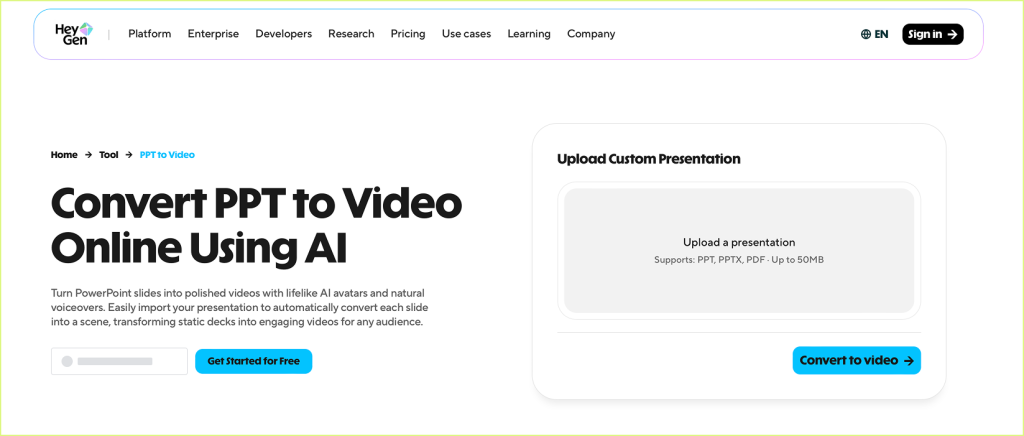
Best for: AI avatar videos, marketing explainers, and multilingual presenter-led content.
HeyGen is a popular AI video platform known for avatar-led videos, voiceovers, and multilingual video creation. It works well when your main goal is to create a video with an AI presenter speaking from a script.
For PowerPoint users, HeyGen does offer a PPT-to-video workflow, but this does not feel like the strongest part of the product. HeyGen is primarily an AI avatar platform, and its PowerPoint conversion experience may feel less mature than its core avatar video features.
This means it can be useful if you want to bring slide content into an avatar-led video, but you may still need to spend time adapting the content, checking the conversion, refining the script, arranging scenes, adjusting timing, and making sure the avatar and slide layout work well together.
HeyGen is especially useful for marketing videos, sales explainers, creator content, product updates, and multilingual communication where the presenter experience matters more than preserving the exact structure of a detailed PowerPoint deck.
Workflow type: Avatar Overlay Workflow
Where it stands out: HeyGen is flexible, modern, and strong for AI avatar-led videos and multilingual content.
Best suited for: marketers, creators, sales teams, product teams, and businesses creating avatar-led videos from scripts, slides, or marketing material.
6. Google Vids
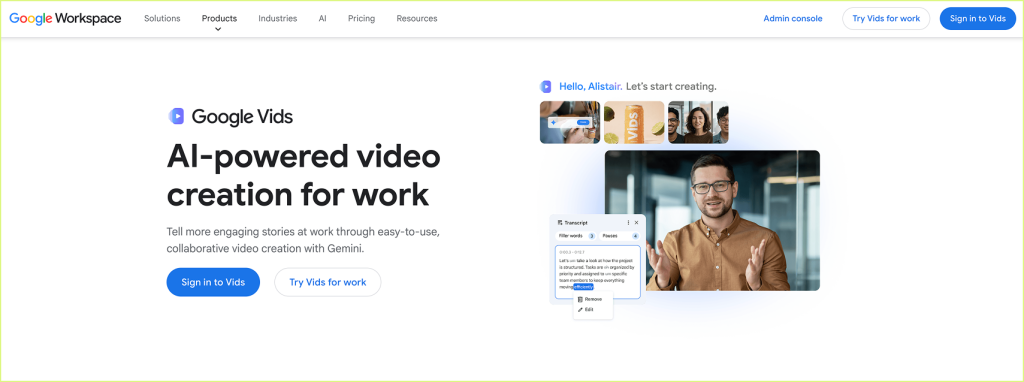
Best for: Workplace videos inside the Google Workspace ecosystem.
Google Vids is Google’s video creation tool for workplace communication. It is designed to help teams create videos for training, onboarding, announcements, support, and internal updates.
Its biggest advantage is that it fits naturally into the Google ecosystem. If your team already works with Google Docs, Google Slides, Drive, and Meet, Google Vids may feel familiar and easy to adopt.
However, Google Vids is not primarily a PowerPoint-to-video converter. It works more naturally with Google Slides than with native PowerPoint files. This matters because Google Slides is only a subset of what PowerPoint can do. If your PPT uses detailed animations, complex formatting, advanced layouts, charts, or other PowerPoint-specific features, you may not get the full PowerPoint experience carried into the video workflow.
Availability is also something to consider. Google Vids is mainly available through eligible Google Workspace Business and Enterprise plans, with some consumer access through Google AI plans. It is not a simple standalone PPT-to-video tool that anyone can use independently.
Google Vids also has AI-assisted features such as script generation, voiceovers, background music, and AI avatars. But it is still better understood as an emerging workplace video tool rather than a dedicated PowerPoint-to-video platform. It is useful for simple workplace videos, but may feel limited if you want a branded custom avatar, slide-aware zooms, B-roll, sound effects, subtitles, translation, and detailed editing control from the original PPT.
Workflow type: AI-Assisted Workplace Video Workflow
Where it stands out: Google Vids is useful for teams already working inside Google Workspace and creating internal workplace videos.
Best suited for: corporate teams, internal communication, onboarding videos, process explainers, workplace announcements, and simple training content.
7. Pictory
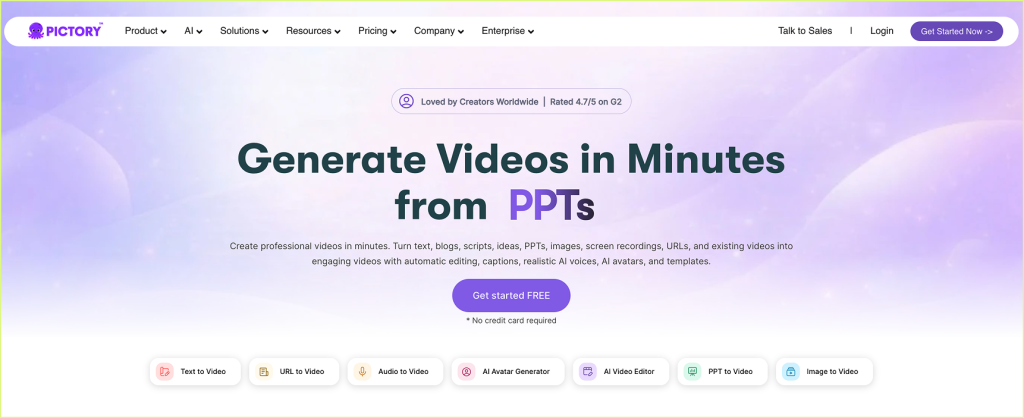
Best for: Turning scripts, articles, and existing content into short videos.
Pictory is an AI video creation tool that is especially useful for repurposing content. It can help turn written material, scripts, blog posts, and other source content into videos with stock visuals, captions, and voiceover.
For PowerPoint users, Pictory can be useful if you want to take the ideas from your slides and turn them into a more general explainer or marketing video. It can help with visual creation, summarization, and video formatting.
However, Pictory is not primarily a PowerPoint-native video director. It is better understood as a content-to-video tool. If you have a detailed PPT with carefully designed slides, diagrams, tables, layouts, animations, or a specific presentation flow, you may still need to adapt the content before it becomes a polished video.
It is a good option when the final video does not need to preserve the exact PowerPoint structure. But if your goal is to convert an existing deck into a narrated, slide-aware, editable video, you may need a more PPT-first workflow.
Workflow type: Content-to-Video Workflow
Where it stands out: Pictory is useful for repurposing written content into short videos with stock visuals and captions.
Best suited for: marketers, creators, bloggers, social media teams, and businesses repurposing existing content into short-form or explainer videos.
8. Loom
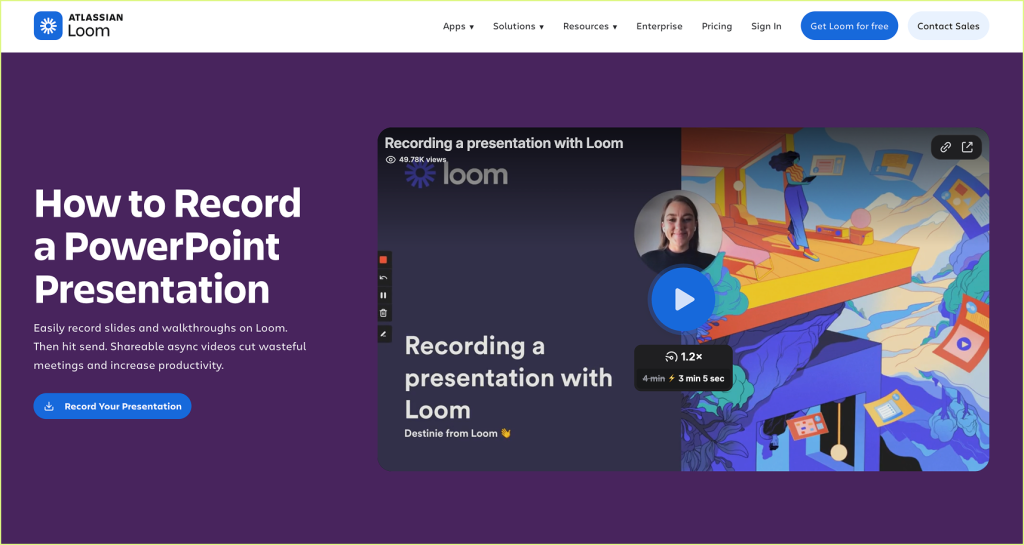
Best for: Quickly recording yourself presenting a PowerPoint.
Loom is not a PowerPoint-to-video converter in the traditional sense. But it is one of the simplest ways to turn a presentation into a video.
You open your PowerPoint deck, record your screen, turn on your camera if you want, and talk through the slides. When you are done, Loom gives you a shareable video link that you can send to a client, student, colleague, prospect, or team member.
This works well when speed matters more than polish. It is useful for quick walkthroughs, async updates, internal explanations, product demos, and situations where you want your voice and face to be part of the communication.
The limitation is that Loom depends heavily on your live recording. You still need to speak clearly, present in one take or edit later, manage mistakes, and make the video engaging yourself. It will feel personal, but it may not feel like a polished explainer video unless you put in additional editing effort.
Workflow type: Manual Recording Workflow
Where it stands out: Loom is fast, simple, and excellent for quick async presentation recordings.
Best suited for: founders, sales teams, educators, managers, product teams, and anyone who wants to quickly explain a deck without building a fully produced video.
9. Descript

Best for: Editing recorded presentation videos.
Descript is not mainly a PowerPoint-to-video converter. It is better understood as a video and audio editing tool that becomes useful after you have recorded your presentation.
A common workflow is simple: record yourself presenting your PowerPoint, import the recording into Descript, and then edit the video like a document. You can remove mistakes, clean up the narration, add captions, adjust audio, and prepare a more polished final video.
This is useful if you are comfortable recording your own presentation but want an easier way to edit it afterward. It is especially helpful for lectures, tutorials, webinars, training videos, and talking-head explainers.
The limitation is that Descript does not remove the recording work. You still need to present the deck yourself, capture the video, and then spend time editing. It helps with post-production, but it does not automatically turn your PPT into a finished video from the deck itself.
Workflow type: Recording Editing Workflow
Where it stands out: Descript makes editing recorded videos much easier, especially with text-based editing and captions.
Best suited for: educators, trainers, podcasters, creators, webinar hosts, and teams that already record presentations and want to edit them faster.
10. VEED
Best for: Editing, captioning, and polishing presentation videos online.
VEED is an online video editing platform that can be useful after you have already created or recorded a presentation video.
For example, you may export your PowerPoint as a video, record yourself presenting with Loom, or create a rough presentation video using another tool. Then you can use VEED to add captions, clean up the video, resize it for different platforms, add branding, include music, trim sections, and prepare the final version for sharing.
This makes VEED useful as a finishing tool. It is especially helpful when your main need is editing and polishing rather than generating the video directly from the PowerPoint.
The limitation is that VEED does not fully remove the work of converting the PPT into a video in the first place. You still need to create or record the presentation video before editing it. It is strong for post-production, but not necessarily a complete PowerPoint-to-video workflow by itself.
Workflow type: Online Video Editing Workflow
Where it stands out: VEED is simple, browser-based, and useful for captions, resizing, branding, and quick editing.
Best suited for: creators, marketers, educators, social media teams, and businesses that already have a presentation video and want to polish it before sharing.
Quick Comparison: Which PowerPoint-to-Video Tool Should You Choose?
| Tool | Best for | Workflow type | Main limitation |
|---|---|---|---|
| CourseCut.AI | Turning PPTs into narrated, avatar-led, editable and multilingual videos | AI Video Director Workflow | Newer tool compared with older video platforms |
| Microsoft PowerPoint | Basic PPT to MP4 export | Basic Export Workflow | Converts format, but does not add much video polish |
| Canva | Good-looking presentation videos | Manual Creation / Design Workflow | Requires manual setup for narration, timing, and video flow |
| Synthesia | Corporate avatar-led videos | Avatar Overlay Workflow | Stronger inside its own video editor than as a PPT-native tool |
| HeyGen | AI avatar and multilingual videos | Avatar Overlay Workflow | PPT-to-video workflow may feel less mature than its avatar features |
| Google Vids | Workplace videos inside Google Workspace | AI-Assisted Workplace Video Workflow | Limited by Workspace availability and not fully PPT-native |
| Pictory | Repurposing written content into short videos | Content-to-Video Workflow | Not ideal for preserving detailed PowerPoint structure |
| Loom | Quick recorded presentation walkthroughs | Manual Recording Workflow | Depends on your live recording and presentation quality |
| Descript | Editing recorded presentation videos | Recording Editing Workflow | Useful after recording, but does not convert PPT directly |
| VEED | Captioning and polishing videos online | Online Video Editing Workflow | Best as a finishing tool, not a full PPT-to-video workflow |
Which Tool Is Best for Your Use Case?
The best PowerPoint-to-video tool depends on what you are trying to create.
If you only need a basic MP4 version of your slides, Microsoft PowerPoint may be enough.
If you want a visually polished presentation video and are comfortable designing it manually, Canva is a good choice.
If you want to quickly record yourself presenting a deck, Loom is the fastest option.
If you already have a recorded presentation and want to edit it properly, Descript or VEED can help.
If your main goal is to create an AI avatar-led corporate video, Synthesia and HeyGen are worth considering.
If your team already works deeply inside Google Workspace and wants simple internal videos, Google Vids may be useful.
If you want to repurpose written content or slide ideas into short videos, Pictory can be a good fit.
But if your starting point is an existing PowerPoint deck and your goal is to turn it into a narrated, avatar-led, editable video with AI help, CourseCut AI is built specifically for that workflow.
It is especially useful when you want the tool to help with the actual video-making work: narration, avatar placement, zooms, B-roll, captions, subtitles, translation, music, sound effects, and editing control.
Final Thoughts
PowerPoint is still one of the best ways to structure ideas.
It helps you organize a lecture, pitch a startup, explain a product, build a course, present a report, or share a strategy. But once the presentation leaves the live meeting or classroom, the format starts to show its limits.
A slide deck needs someone to explain it.
That is why converting PowerPoint to video is becoming so useful. A video can carry your narration, your pacing, your emphasis, and your story. It can be shared over email, uploaded to YouTube, embedded into an LMS, used in onboarding, sent to prospects, or reused as long-form content that keeps working after the first presentation is over.
The right tool depends on how much of the work you want to do yourself.
If you only need a basic export, PowerPoint can do the job. If you want to record yourself, Loom is fast. If you want to edit a recording, Descript and VEED are useful. If you want avatar-led corporate videos, Synthesia and HeyGen are strong options. If you want simple workplace videos inside Google Workspace, Google Vids may fit your team.
But if your goal is to turn an existing PowerPoint into a complete video experience, the workflow matters.
You do not just need PPT to MP4.
You need PPT to a video people can actually watch.
That means narration, pacing, visual movement, presenter presence, captions, B-roll, subtitles, translation, and the ability to edit the final output.
That is where AI-first PowerPoint-to-video tools like CourseCut AI are especially useful. They are designed for the gap between having a finished deck and needing a finished video.
Because the real value is not just in converting the file.
The real value is in making your ideas easier to watch, understand, share, and remember.