Author: Abhay

  • Best PPT Maker AI Tools in 2025 (Free AI PowerPoint Generators)

    Best PPT Maker AI Tools in 2025 (Free AI PowerPoint Generators)

    Best PPT Maker AI Tools (Free & Paid)

    Introduction

    Creating presentations has long been dominated by Microsoft PowerPoint and Google Slides, with alternatives like LibreOffice Impress and Prezi in the mix. PowerPoint remains the most widely used worldwide, while Google Slides has become the go-to for collaboration. Prezi, once known for its zooming canvas, has also reinvented itself with AI-driven storytelling.

    But the way we make presentations is evolving. AI-powered PPT makers (sometimes called AI PowerPoint generatorsAI PPT makers, or free AI presentation makers) now allow you to generate entire slide decks in minutes. Instead of starting with a blank slide, you can enter a short prompt or upload files, and AI will create layouts, visuals, and text for you.

    As of 2025, both tech giants (Microsoft and Google) and newer startups are offering powerful PPT AI makers. Let’s explore the top ones worth trying.

    Top PPT Maker AI Tools

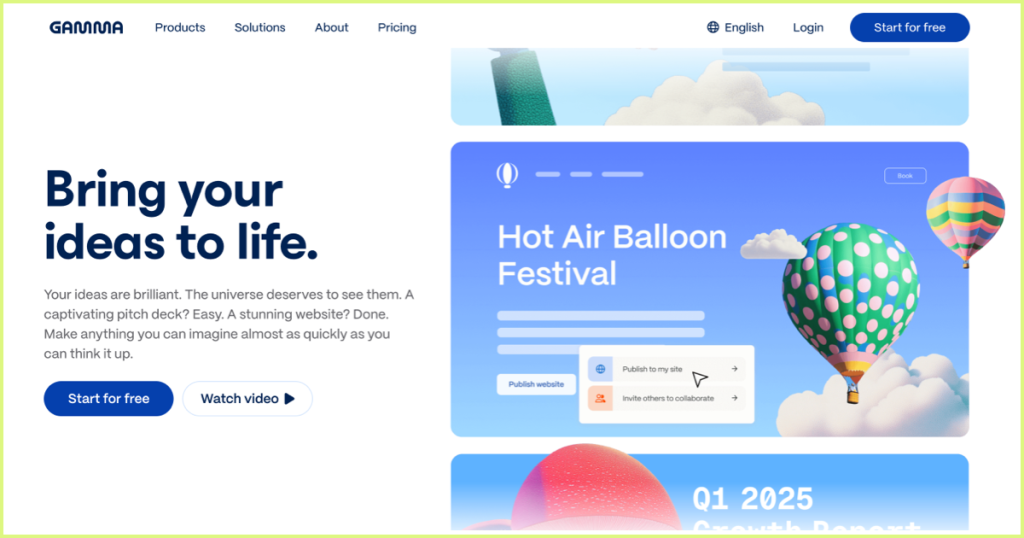
    1. Gamma

    Known for speed and flexibility, Gamma can generate a draft deck in seconds. Its minimalist interface makes it easy to edit and refine.

    • Great for: startups, storytelling, and quick brainstorming decks.
    • User feedback: “Gamma AI is definitely worth checking out. Free to try and very intuitive.”
    https://gamma.app/

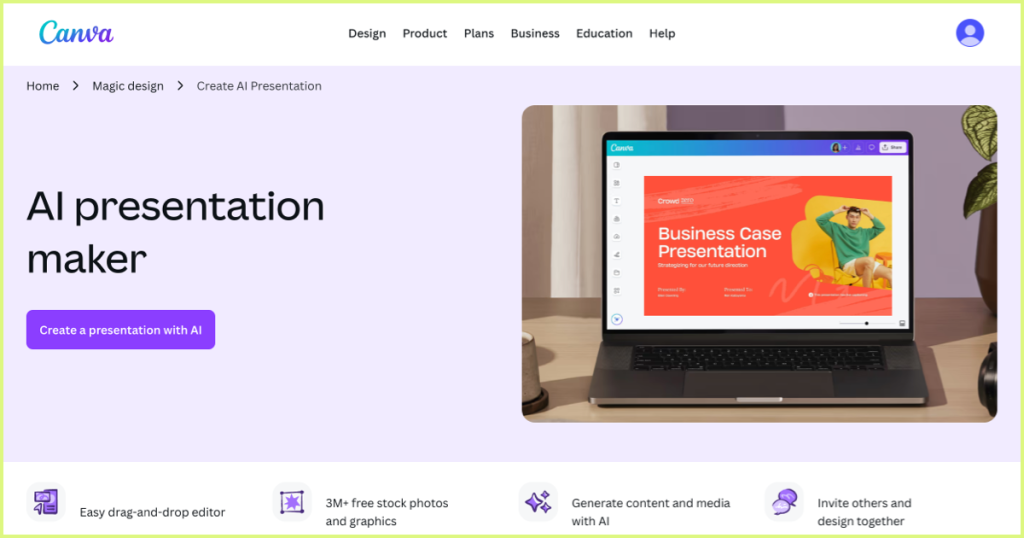
    2. Canva (AI Presentation Maker)

    Already a household name in design, Canva’s AI presentation generator builds a draft deck from a short prompt. You can then use Canva’s huge library of fonts, templates, and visuals to polish it.

    • Great for: marketing teams and creators who want design flexibility.
    • Strength: Combines AI automation with endless customization.
    https://www.canva.com/create/ai-presentations/

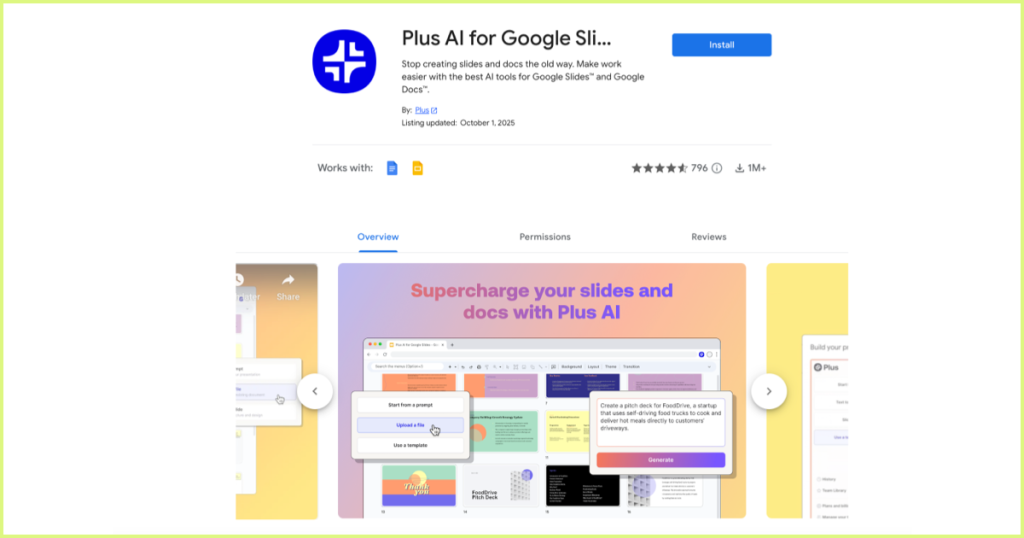
    3. Plus AI for Google Slides

    An add-on that brings AI directly into Google Slides. Enter a brief description, and Plus AI generates an outline and suggested slides. It also supports live data integration and custom templates.

    • Great for: professionals who work primarily in Google Workspace.
    • Why it stands out: seamless integration with a tool you already use.
    https://workspace.google.com/marketplace/app/plus_ai_for_google_slides_and_docs/214277172452

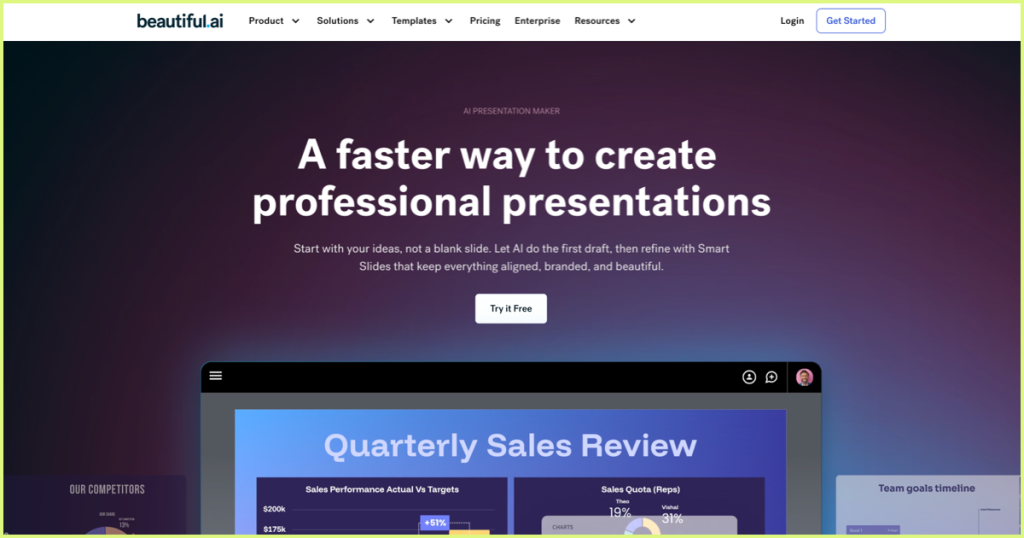
    4. Beautiful.ai

    One of the earliest and most popular AI presentation makers. Automatically adjusts formatting and layout to make every slide look polished.

    • Great for: business professionals who need consistently clean and modern designs.
    • Why it stands out: Smart templates + automation → minimal manual editing required.
    https://www.beautiful.ai/

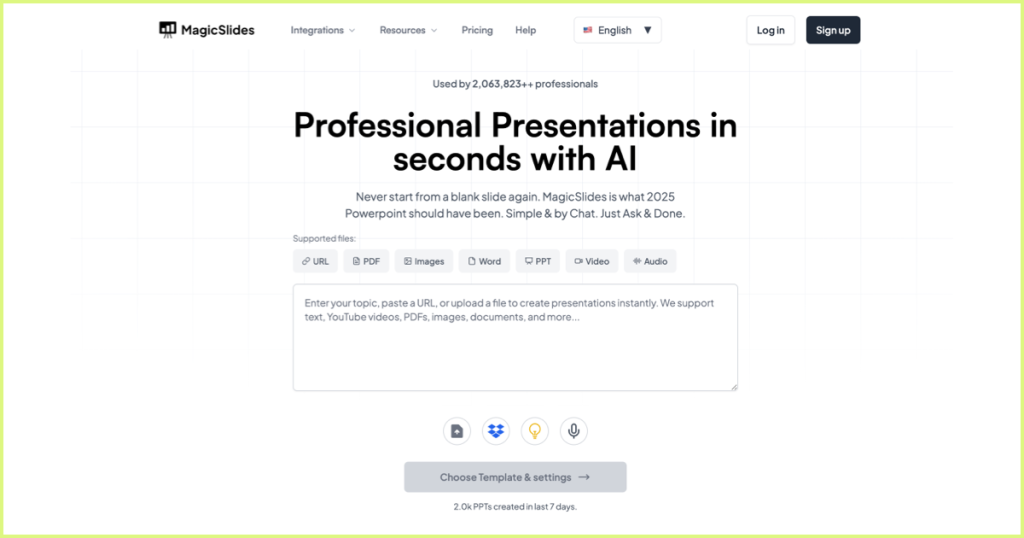
    5. MagicSlides.app

    This AI PPT generator takes diverse inputs—topics, YouTube URLs, PDFs, or Word documents—and converts them into slides.

    • Great for: educators, trainers, and students.
    • Highlight: versatile input options and ease of use.
    https://www.magicslides.app/

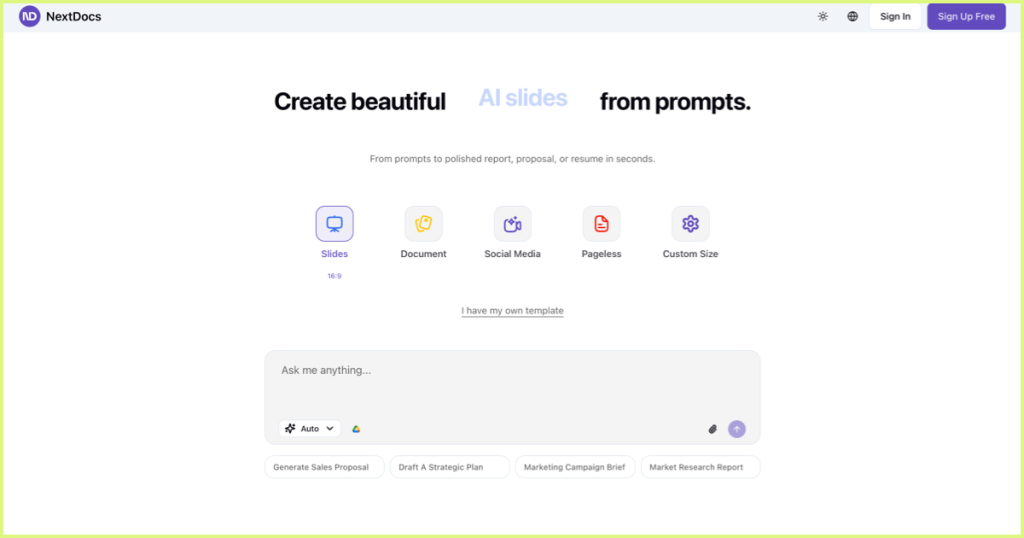
    6. NextDocs.io

    A newer but impressive player, NextDocs.io has earned praise for its intuitive user experience and strong AI slide generation.

    • Great for: professionals wanting polished, no-fuss results.
    • Community feedback: “Better AI capabilities than many established tools.”
    https://www.nextdocs.io/

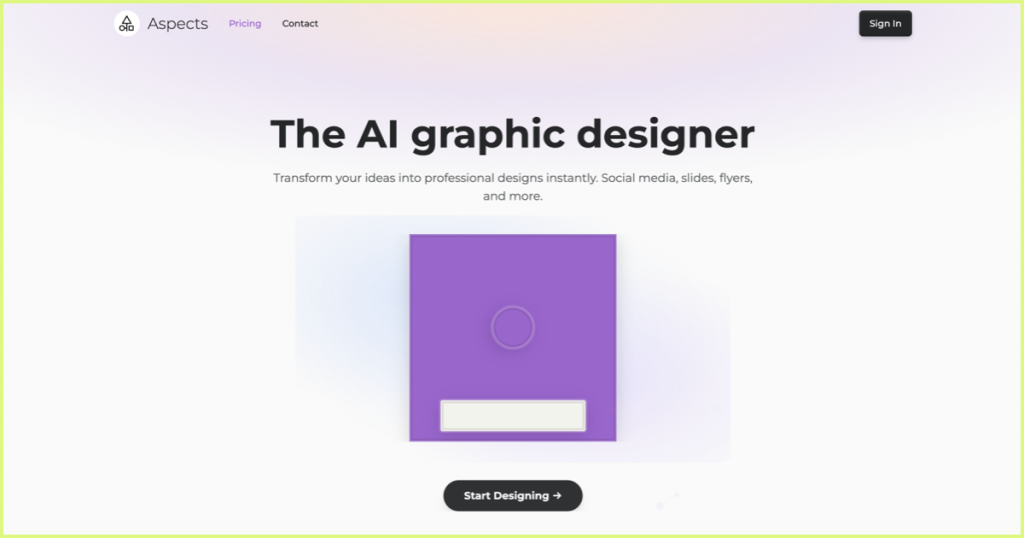
    7. Aspects.studio

    Unlike most AI PPT makers, Aspects focuses on producing a near-finished deck rather than giving you a workspace to tweak. It’s an autonomous slide designer.

    • Great for: users who want something “done-for-you.”
    • Caveat: less flexibility if you like making manual edits.
    https://aspects.studio/

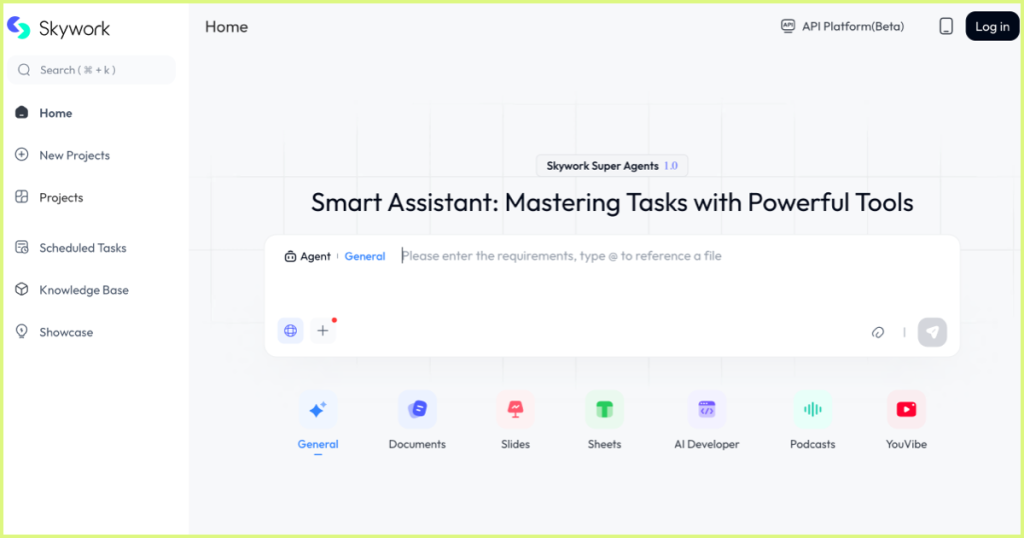
    8. Skywork.ai

    Praised for thoughtful layouts and professional formatting, Skywork.ai impressed even consultants used to high standards.

    • Great for: business consultants, analysts, and corporate teams.
    • Watch out: Some AI-generated charts may lack proper sources—double-check before presenting.
    https://skywork.ai/

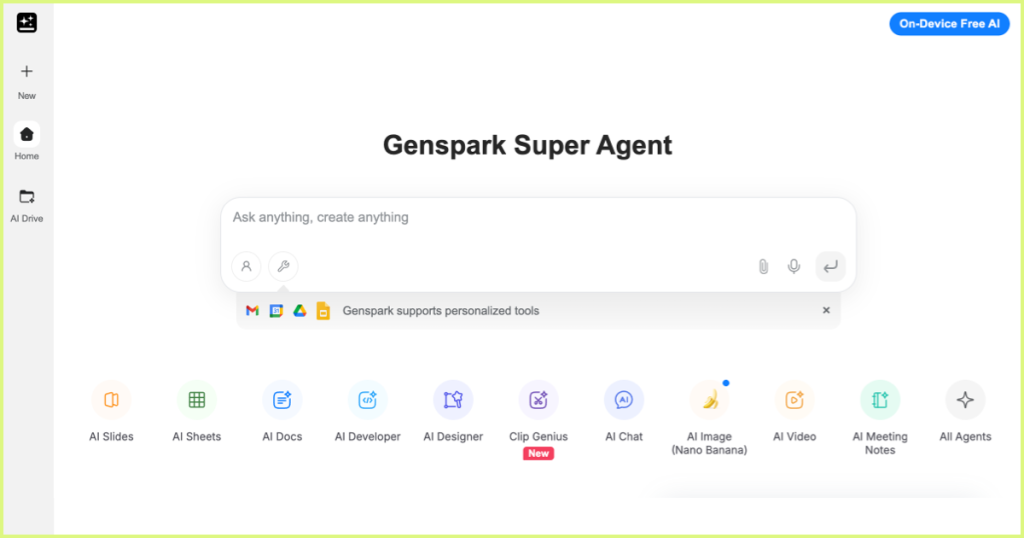
    9. Genspark

    A free AI PPT maker with a straightforward interface, though the free version is limited to 5 slides.

    • Great for: testing out AI slide generation before upgrading to paid tools.
    https://www.genspark.ai/

    Tips for Getting the Most Out of AI PowerPoint Generators

    1. Use AI as a starting point – Treat AI as your draft partner, not your final designer.
    2. Refine manually – Most tools need tweaks to match your brand and style.
    3. Practice delivery – Remember, slides don’t replace communication; they support it.
    4. Choose the right tool for your goal – Some tools are best for storytelling, others for data-heavy reports.

    Bonus: Turn Any PPT into a Video with CourseCut.AI

    No matter which PPT Maker AI tool you choose—PowerPoint, Google Slides, or AI-first platforms—the end result is usually a static deck.

    With CourseCut.AI, you can give your slides a second life by converting them into explainer videos. Simply upload your PPTX file, and CourseCut will:

    • Generate a video script
    • Add a professional AI voiceover
    • Insert b-roll visuals for context

    Perfect for educators, trainers, and creators who want to reach wider audiences across YouTube, LMS platforms, or social media.

    Conclusion

    From established names like Microsoft PowerPoint with Copilot and Google AI Slides to rising stars like Chatslide, Gamma, and NextDocs, there’s no shortage of AI PPT makers in 2025.

    Each AI PowerPoint generator has its strengths—some focus on speed, others on design or storytelling. The best choice depends on your needs. And when you want to go beyond static slides, tools like CourseCut.AI help you turn any presentation into an engaging video.

    The future of presentations is not just making slides faster—it’s about making them smarter and more versatile.

  • Richard Mayer’s 12 Multimedia Learning Principles: A Guide for Course Creators and Educators

    Richard Mayer’s 12 Multimedia Learning Principles: A Guide for Course Creators and Educators

    Introduction

    Multimedia is everywhere in modern education. From MOOCs (think Udemy, Coursera) to corporate training videos and YouTube explainers, learners now expect their content to be visual, dynamic, and engaging. But not all videos are equally effective.

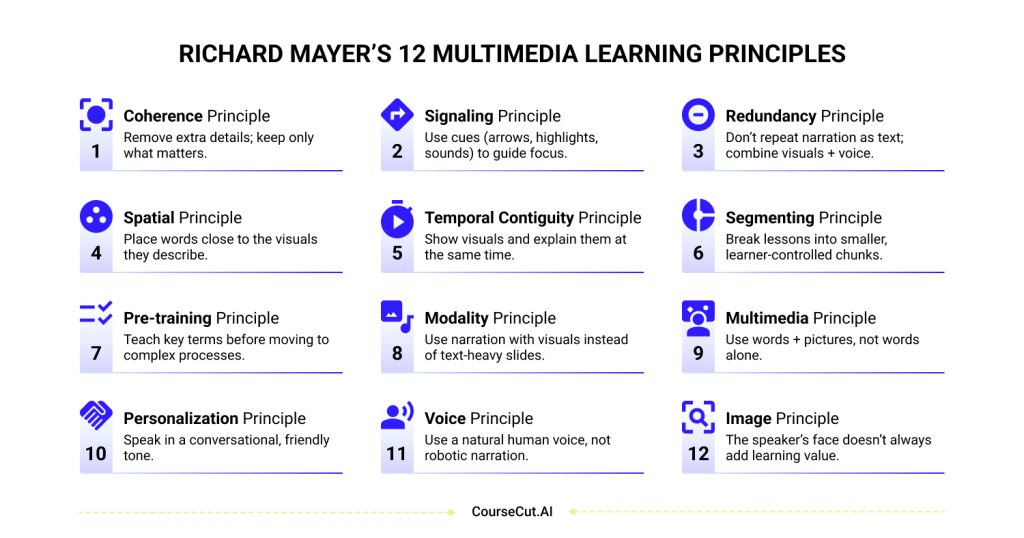
    Decades of research by educational psychologist Richard Mayer have shown that the way information is designed matters just as much as the information itself. His 12 Multimedia Learning Principles provide a science-backed framework for creating videos and presentations that actually help people learn.

    In this blog, we’ll break down each principle in plain language — with practical takeaways for teachers, course creators, and L&D teams.

    The 12 Principles of Multimedia Learning

    1. Coherence Principle

    Definition: People learn better when unnecessary content is removed.
    What it means for you: Don’t clutter your slides or videos with decorative images, background music, or long tangents. Focus only on what helps the learner reach the learning goal.

    2. Signaling Principle

    Definition: People learn better when key information is highlighted with cues.
    What it means for you: Use arrows, highlights, zoom-ins, or even subtle sound effects to draw attention when introducing an important concept or keyword.

    3. Redundancy Principle

    Definition: People learn better from graphics and narration than from graphics, narration, and on-screen text.
    What it means for you: Avoid reading text word-for-word off your slides. Instead, pair narration with visuals. Use text only for key terms or definitions — not to duplicate what’s already being said.

    4. Spatial Contiguity Principle

    Definition: People learn better when words are placed close to the visuals they describe.
    What it means for you: If you’re labeling a diagram, put the label right next to the part it refers to. Don’t force learners to keep looking back and forth between the picture and a far-off legend.

    5. Temporal Contiguity Principle

    Definition: People learn better when visuals and narration are presented at the same time.
    What it means for you: If you’re explaining a chart, show the chart as you speak. Don’t show the chart first and then talk about it later — timing matters.

    6. Segmenting Principle

    Definition: People learn better when lessons are broken into smaller, manageable chunks.
    What it means for you: Instead of recording one 30-minute video, split it into 5–6 shorter segments. Learners can pause, review, and process the content more effectively.

    7. Pre-training Principle

    Definition: People learn better when they already know the key terms and components.
    What it means for you: Before teaching a complex process (like how a supply chain works), first explain the key actors (manufacturer, distributor, retailer). A glossary slide or short intro video can go a long way.

    8. Modality Principle

    Definition: People learn better from graphics and narration than from graphics and text.
    What it means for you: Don’t overload your slides with written explanations. Use spoken narration to explain visuals, and keep the slides clean and minimal.

    9. Multimedia Principle

    Definition: People learn better from words and pictures than from words alone.
    What it means for you: Instead of listing bullet points, illustrate concepts with diagrams, animations, or icons. A simple picture often conveys more than a sentence.

    10. Personalization Principle

    Definition: People learn better when narration uses a conversational tone.
    What it means for you: Speak as if you’re talking to the learner directly — use “you” and “we” instead of overly formal language. It builds connection and makes the material feel approachable.

    11. Voice Principle

    Definition: People learn better from a natural human voice than from a robotic one.
    What it means for you: If you’re using AI avatars or text-to-speech, choose options that sound warm and human. Learners connect better when the voice feels real.

    12. Image Principle

    Definition: Adding the speaker’s face to the screen does not always improve learning.
    What it means for you: Learners benefit most from clear visuals and explanations. Including your face or avatar can help with connection, but don’t let it distract from the content itself.

    Conclusion

    Mayer’s 12 Multimedia Principles are not just theory — they’re a blueprint for effective teaching in the digital age. They remind us that learning happens best when we design for the brain: reducing clutter, guiding attention, and aligning visuals with narration.

    At CourseCut.AI, we see these principles as the foundation for creating course and explainer videos that work.

    Because better-designed videos don’t just look good — they help learners truly understand and remember.

  • From PowerPoint to Video: How AI is Transforming Online Learning and Course Creation

    From PowerPoint to Video: How AI is Transforming Online Learning and Course Creation

    PPTs Are Good, But Not Enough

    If you’ve ever created a PowerPoint presentation, you know the effort it takes. You might spend four or five days perfecting the content and design — only to present it once to a class of 40–50 people and then let it sit in a folder, never to be opened again. That presentation is effectively dead.

    The new age of teaching is different. Instead of being a one-time event, your presentation can be evergreened by turning it into a video. A video has reach far beyond the classroom — tens of thousands of learners can access it on platforms like YouTube, or through MOOCs (think Coursera, edX).

    PowerPoint has been a great backbone of teaching. It’s concise, it’s visual, and it’s an excellent assistant to the teacher in the room. But in today’s digital-first learning world, slides alone are not enough.

    And here’s the catch: while video is the obvious next step, making a good one is hard. Really hard. Or is it? Could there be a ChatGPT-like AI for turning slides into videos? Let’s explore.

    The Traditional Workflow: Effective, But Demanding

    So what does it actually take to turn a PowerPoint into a proper course video today? For most teachers and trainers, it’s not a one-step process. It’s a marathon.

    It usually looks something like this:

    1. Build your slides — carefully arranging text, visuals, and animations.
    2. Write a script — because slides don’t explain themselves.
    3. Record — which means lights, cameras, microphones, and a quiet room.
    4. Re-record — because mistakes happen, and the first few takes rarely feel right.
    5. Hire an editor — who works in Adobe Premiere ProFinal Cut Pro, or iMovie to stitch everything together.
    6. Go back and forth on edits — trimming, syncing, pacing, and polishing until it feels just right.
    7. Add finishing touches — sound effects, B-rolls, and transitions, all of which take time and budget.

    By the time you’re done, that one video might have taken weeks of effort and more resources than most educators or trainers can justify.

    This is why many large universities have invested in dedicated video production studios — with full teams, professional equipment, and big budgets to digitize their courses. That’s great for them, but what about individual teachers, smaller institutions, or independent creators?

    For most, the traditional workflow is simply too heavy to scale.

    Where Current Tools Help — and Where They Don’t

    Over the past decade, new tools have made video creation easier than ever.

    All of these have contributed to making video more accessible. But the question isn’t just “can we make a video?” — it’s “can we make a video that supports learning?”

    That’s where research gives us important clues:

    • Framing matters. A large-scale MIT study of MOOCs (Guo, Kim & Rubin, 2014) found that learners engage more when the instructor is visible alongside slides (picture-in-picture or side-by-side) rather than just narration. Videos under six minutes also showed far higher completion rates.
    • Slide + person is better than slide alone. Richard Mayer’s multimedia learning research (Mayer, 2009Fiorella & Mayer, 2018) shows that combining instructor presence with visuals improves both attention and recall.
    • Eye contact builds trust. Research on instructional video design (Kizilcec et al., 2015; Beege et al., 2023) demonstrates that learners perceive instructors as more credible and stay more engaged when they make eye contact with the camera.
    • Dynamic visuals help. Static slides alone quickly lose attention. Experiments show that highlighting, zooming, or animating key elements while speaking about them improves retention (Fiorella & Mayer, 2018).
    • Sound cues matter. Mayer & Moreno (2003) demonstrated that even subtle audio signals when a new idea appears help learners focus on the right content at the right time.
    • Eye-tracking research. Recent reviews (Deng et al., 2022 — link) confirm that learners split attention between the instructor and slides. Good design aligns the two so learners don’t have to choose.

    When we look at current tools through this lens, the gap becomes clear:

    • Screen recorders capture slides and voice, but miss instructor presence and signaling.
    • Avatar platforms add presence, but often ignore PowerPoint animations or eye contact.
    • Professional editors can achieve it all — but only with significant expertise, time, and budget.

    So while today’s tools make it easier to create videos, they don’t always make it easier to create effective learning videos.

    How AI Can Reshape Course Video Creation

    The traditional workflow is long and costly. Current tools help in parts, but they don’t always make videos that truly support learning. This is where AI changes the game.

    Instead of weeks of scripting, recording, and editing, imagine this:

    • You upload your PowerPoint slides.
    • AI adds signals and cues — a gentle sound when a new idea appears, or a highlight on the keyword being explained.
    • The instructor (or an AI avatar) appears alongside the slides, creating presence and connection while keeping the content central.
    • Animations and B-rolls are layered in to make abstract concepts clearer and more memorable.
    • The pacing, transitions, and even sound design are all taken care of — automatically.
    • And with a click, the same video can be translated into multiple languages — extending education to remote learners, local communities, and even languages that rarely see high-quality digital content.

    What once required a camera crew, professional editors, and weeks of effort can now be done in minutes. And most importantly, the end result is not just a video — it’s a learning experience that holds attention, breaks language barriers, and makes knowledge accessible anywhere.

    Our Mission

    Education has always been about access. The classroom made it possible for dozens of students to learn together. The internet made it possible for thousands to join MOOCs and online platforms. The next leap is making high-quality learning videos available to anyone, anywhere, in any language.

    We believe technology should not replace teachers, but amplify them. A great teacher with a simple PowerPoint presentation should be able to reach the same scale and impact as a university with a video studio.

    Our mission is to make professional-quality learning videos accessible to every educator, trainer, and institution — no matter their size, budget, or technical skill. Because when slides can become engaging videos with presence, clarity, and even multilingual delivery, education stops being confined to one classroom or one language.

    The promise of AI in education is not just faster production. It’s about giving every teacher the tools to reach more learners, connect more deeply, and make knowledge last longer.

    And this is only the beginning. With rapid advancements in technology, we may soon move beyond videos as passive content. Imagine a world where learners can interrupt an AI avatar mid-video, ask a question, and get their doubts clarified instantly. That’s the kind of future we’re working toward — where teaching is not only scalable, but also interactive and personal.

    Conclusion

    PowerPoint presentations were a solid backbone for teaching in the past. But in a world where learners expect content online and educators want to reach audiences far beyond their classrooms, video has become the natural next step.

    The challenge has always been the effort: weeks of recording, re-recording, and editing — or settling for tools that make videos look polished but don’t fully support how people learn. AI changes this equation. It allows us to bring presence, clarity, cues, animations, and even multilingual delivery into videos in minutes, not weeks.

    But this is just the start. The future of learning videos won’t be passive at all. We may soon see AI avatars that can be interrupted mid-lesson, ready to answer a learner’s question in real time — transforming video into an interactive classroom without walls.

    The goal is not simply to produce more content, but to create better learning experiences: videos that engage, explain clearly, and scale access to knowledge everywhere. That’s the journey we’re on.